Showing posts with label reviews. Show all posts

A beginners tour of Shotwell - Ubuntu’s new photo manager

View Comments

Ubuntu 10.10 will see the much-derided F-Spot pushed out of the frame in favour of the lighter, leaner Yorba-developed photo manager/editor app going by the name of 'Shotwell'.

Whilst we’ve featured Shotwell many times on OMG! Ubuntu! but, for many of you reading this, Maverick will be your first chance to get a close-up with the neat little tool.

With that in mind what better time for a brief run down of using Shotwell. We likely won’t squeeze in a mention for every options, setting and feature Shotwell has but we’ll do our best…

First run

You're new to Shotwell and Shotwell knows that. To help develop your potential relationship Shotwell launches a handy ‘first-run’ dialogue to get you up and running. Selection_004[3]
Photos can be imported via the ‘File’ menu, a camera or simply dragging and dropping images on to the Shotwell interface.

Importing photos from a camera

Shotwell, like F-Spot, can be made to auto-launch on the insertion of a digital camera. 4.0 GB Filesystem_006[3]I plugged in my Kodak Zi8 - a HD video camera that can also take photos - to see what would happen.

The process was instant: I plugged in, the dialogue above opened, I clicked okay and there were my photos in Shotwell ready to be imported, edited and tagged.
Shotwell_008[3]
I didn’t want to import my entire collection of random photos to my Pictures folder (Shotwells default placing) but merely a couple.

Selecting a number other than ‘all’ would be a bit unintuitive for someone not versed in the handy CTRL+Click. I initially thought I could simply click on the ones I wished to import to select them, clicking them again to deselect, but no dice.

After selecting my photos for import using CTRL+Click I then used the right click menu to import them.Shotwell_009[3]
Yikes! After a successful import the following  prompt popped up which, had I not paid attention, could easily have cost me my original photos! Import Complete_010[3]

The Main window

One great thing about Shotwell is the consistency - you don’t have separate jarring designed windows for import, editing, etc - they all not only look pretty much the same but behave the same.

The main window can be zoomed into, you can right click on photos to duplicate photos and add tags.

Photos are grouped into ‘events’ based on the the date/time the photos was taken. These dates can be renamed to more meaningful titles such as ‘Day out with Benjamin’ or ‘UDS 2009’. Where there is no date available the event defaults to the date the photo was imported. 
Shotwell_011[3]
Tagging and Events
Adding tags makes sorting photos, at least in my opinion, easier. Want to find all photos with Aunt Thelma in? Tags all the pictures she’s in with ‘Thelma’ and hey presto - easy access.

Adding tags is done by selecting/right-clicking on the photo/s you wish to add a certain tag/s to and choosing ‘add tag’.Add Tags_015[3]Adjust time and date
We touched on ‘event’ data above but often this might not be accurate or your desired preference. You can adjust the time and date data of selected photos by right clicking on the photo(s) you wish to edit and choosing ‘Adjust time and date’. 
Adjust Date and Time_016[3]

Editing

Shotwell comes packed with an impressive - nay comprehensive - array of editing and tweaking tools, helping touch up photos that are overly dark, washed out, need red eyes removed, etc.
Shotwell_014[3]
To edit a photo you simply need to double click on it. It will open up larger with the editing toolbar underneath. The main ‘editing’ tools present in Shotwell are: -

  • Rotation
  • Cropping (with auto-sizes etc)
  • Red eye reduction
  • Adjust exposure, saturation, tint, temperature and shadow
  • Cne-click “enhance” feature

Other features available, but only present in the ‘photo’ menu include mirroring, flipping and

One click enhance

The one-click ‘enhance’ feature is pretty hit and miss. Below sit two photos. The left is the original and the right has been “enhanced” using the one-click tool in shotwell.

Whilst the image does look better on the whole it is a bit overly light in places (for example the top of my thigh) but the best contrast is pretty decent for an ‘automatic’ method - but certainly not up to par with Google Picasa.

One doesn’t need to be in editor mode to apply the auto-enhance effect - just right-click on any photo & select 'enhance'.

Slideshow

Shotwell boats a slideshow feature that is no worse – or no better – than that of any other image viewer or organizer. You can specify time between transition and manually hit the “next/previous” buttons to zip though.Screenshot-1

Exporting photos

No desktop photo manager would be worth saying Cheese to if it lacked social-media exporting. Fans of F-Spot willing to give Shotwell a try will find that it also supports major online services such as: -

  • Flickr
  • Facebook
  • PicasaWeb
Exporting doesn’t just involve online either, you are able to export any photo in your library to a different file format and with differing rates of compression.

Preferences

Everyone loves a good preferences package and Shotwell has… well.. a few preferences. To be fair up until recently Shotwell had no preferences at all so this is a step in the right direction. ShotwellPreferences_0053Here you can set the background colour (on a scale of white to dark), import location (defaults to the Pictures folder in your Home) and set external applications for advanced editing.

image

Continue reading

LightSpark Vs Flash: Benchmarked

View Comments
The team behind open-source Flash alternative LightSpark pushed out a new bug-fix release a few days ago.

Seeing as we're a few releases in, I felt now was a prime time to see just how well LightSpark performs against its proprietary counterpart - particularly so I have a benchmark which  to compare future releases against.

Now, you don't need to be remotely "on-the-ball" to predict that LightSpark won't out-whoop the real Flash plug-in, but if users are considering taking a performance hit by switching they might want to know exactly how big a hit it will actually be...

Tests

For my highly unscientific testing I used stock Flash from the repo in both Firefox and Chromium, Google-Chrome’s built in Flash plug-in and, finally, LightSpark's browser plug-in for Firefox.

When choosing which tests to run I opted for a number of “real world” use cases. Y'know, YouTube videos, flash games and websites, etc. For more concise tests I opted for GUIMark2.
Scores
CPU load scores were taken at three intervals during the respective activities and the average presented below. For the most part the loads hovered nicely around these scores. RAM usages is in MiB and, again, is the average based on three intervals.

GUI Mark tests were each run three times and the average score listed.

Firefox & Flash 10.1.53.64

Firefox 3.6.8 coupled with stock Flash from the Ubuntu repository.  
  • YouTube: CPU 44%, 24MiB
  • Flash game #1: 58% 9.3MiB
  • Flash-heavy website: 58%, 40MiB
  • Flash Game #2: 72%, 36MiB
GUIMARK2
  • Bitmap Gaming: 12.04 fps
This test stresses pushing around lots of bitmap assets that animate each frame.
  • Vector Chart: 15.34 fps
This benchmark is designed to stress the vector apis by simulating a streaming stock chart.

Firefox & Lightspark

Firefox 3.6.8 partnered with the LightSpark browser plug-in.
  • YouTube: CPU 96%, 24.8MiB
  • Flash heavy website: 100% CPU, 29.7MiB; wouldn't load past intro - no menus etc
  • Flash game #1: wouldn't load.
  • Flash game #2: wouldn't load.
GUIMARK2
  • Bitmap Gaming: N/A
  • Vector Chart: N/A
Finally, just for comparison, I ran the same tests again  in Google Chrome & Chromium.

Google Chrome ships with a built-in version of Flash whilst Chromium makes use of the Flash plug-in proper although preliminary support for Lightspark in Chromium is available.

Google Chrome w/built in flash

  • YouTube: 20% CPU, 25.4MiB RAM
  • Flash heavy Website: 50%, 29MiB
  • Flash game #1: 52%, 20MiB
  • Flash game #2: 82%, 49MiB
GUIMARK2
  • Bitmap Gaming: 12.53 fps
  • Vector Chart: 16.65 fps

Chromium Flash 10.1.53.64

  • YouTube: 56%, 29MiB
  • Flash heavy website: 52%, 23MiB
  • Flash game #1: 54%, 15MiB
  • Flash game #2: 86%, 45.6MiB
GUIMARK2
  • Bitmap Gaming: 9.55 fps
  • Vector Chart: 15.51 fps

Notes

The rather poor showing for LightSpark shouldn’t be surprising given its relative freshness. The fact that many of the Flash-based activities we tried couldn't load shouldn't take away from the advances it is making but rather highlight to casual users keen to ditch flash on a whim the relative shortcomings of tool.

The resource usage was not only much higher but frequent page lock-ups and stuttery YouTube video playback rendered the few jobs it could handle moot.

LightSpark aside, something else shows up in these results: how much more resourceful Flash was on YouTube in Google Chrome. The CPU load barely ever went above 20%. Flash is a typically a resource hound on Linux so seeing such a relatively good showing is great to see.

Google's choice to "improve the Flash Player experience in Google Chrome" seems to be paying off. Whilst RAM usage was often ever-so slightly higher than standalone flash the lower CPU draw and over-all feel was very fluid. The GUIMark2 tests also bear this out, receiving better scores than the standalone version.

Continue reading

Xnoise - lightweight & well designed desktop media app

View Comments

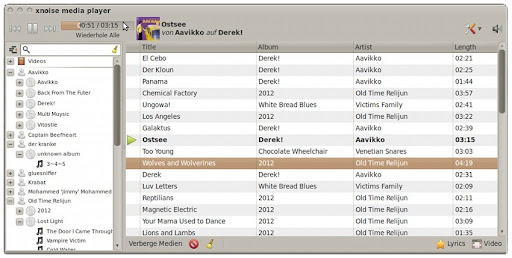
Another week and another media player. Say hello to Xnoise - a self-described ‘lightweight’ music and video player that has been making a lot of noise of late.Written in vala - and therefore more nimble than other applications of its ilk - Xnoise stakes itself on being different to its competition. The use of a ‘tracklist centric design’ certainly helps differentiate the app but to users attuned to the melody of Rhythmbox and Banshee is Xnoise nothing more than static?

Charades by Better Luck Next Time on A Lifetime Of Learning _001

XNoise: Features

Feature wise Xnoise covers most of the bases you’d expect and resources wise it’s very light - you won’t find it chomping away on RAM just to play a track.

The media browser is hierarchical (like that of Amarok and Clementine) which is a boon to some and a meh to others. Given the ‘track list’ centric design it actually makes sense. Dragging and dropping single tracks or entire albums is swift and easy, rearranging them in window is also allowed.

A lyrics feature is included by default. Simple press the ‘lyrics’ button positioned on the lower bottom track window and the lyrics view will appear. Press again to hide.Fighting Fists, Angry Soul by Better Luck Next Time on Hybrid _002[6]

There is no traditional ‘menu bar’ in Xnoise, all options are tucked away inside a ‘settings’ icon on the far right. A tray icon complete with player controls inserts itself into your panel.

The application is young and as such there are plenty of issues present; adding my music library took a very long time. Xnoise seemed to have a penchant for ‘greying out’ (freezing) - so much so that I spent more time with a frozen Xnoise than with a working Xnoise!

Xnoise: Plug-ins

xnoise_004[3]An application wouldn’t be an application in today's extension-crazy world without some form of plug-in framework & Xnoise happily obliges.

The range of extensions offered by default is pretty measly. Aside from 3 or 4 separate lyrics services, the ability to put the track name in the window title bar and Last.FM cover downloading there is precious little else to get excited about.

Many features that are fast considered ‘common’ aren’t present; there is no Last.FM scrobble support, no indicator applet, no desktop art applet and no configurable interface.

Xnoise: Videos

Xnoise can play any video format supported by Gstreamer so chances are that if it plays in Totem it’ll play in Xnoise. Video playback is fine - nothing majorly detractive to comment on other than the lack of many video features you may be accustomed to such as subtitle support.

Connivance aside, I’ve yet to find much reason to have an integrated music and video player. Xnoise isn't a media center but a desktop application and, chances are, you don’t want your videos ‘managed’, muddled up with your music and played in a combined media player.

I might be alone on this score which is fair enough but the old adage - ‘do one thing and do it well’ comes to mind.

Install Xnoise in Ubuntu via PPA

Xnoise has a PPA for Lucid and Maverick users from which installation is advised.

  • sudo add-apt-repository ppa:shkn/xnoise
  • sudo apt-get update && sudo apt-get install xnoise xnoise-plugins-core

Xnoise is simple and if simple is what you’re after then check it out. Being quite a young application it has bugs and stability issues but is much better looking than other ‘lightweight’ music players out there - and much more simple to use too!

Also see Minitunes

Continue reading

Naufrago! RSS reader is basic but competent

View Comments

Nothing comes close in terms of awe and ease as Google’s very own online RSS reader ‘Google Reader’.

Despite this many users still use desktop based solutions. Liferea is perhaps the most well known desktop Linux RSS reader but other options are available - RSSowl being a well known alternative to Liferea.

With not exactly much competition in desktop-based solutions on Linux (fuelled, in part, by an equally lacklustre amount of actual need for them) you could be forgiven for sounding uninterested at the mention of new desktop RSS reader Naufrago!. And, from its initial few releases, you wouldn’t exactly be missing much.Naufrago!_005[5]

Features

It’s a desktop based RSS reader. You add feeds and it displays them. Simple, right? Thankfully Naufrago! does this well but is also able to store feeds - complete with images - for offline use. There’s no online-sync with Google Reader or complex reading stats to delve into after weeks of use: just add, update, read.

It’s this former point - about lack of sync-ship - that will put many potential users off. The cumbersome nature of opening a browser to check feeds does, admittedly, still feel a bit alien; after all if I'm in my browser anyway, why not just visit the site? This is where desktop-based options often come to the fore.

You can import/export feed files in the OPML format, arrange feeds into folders and see favicons for quick visual identification.

For someone looking for a competent and fast RSS reader Naufrago! is a sound, if slightly basic, choice. It loads faster than Liferea and doesn’t seem to suck up as many resources either. Power users or those looking for more control would be better of sticking with the established matriarch Linux feed reader Liferea.

Download

Naufrago! is a free download, .deb available @ http://enchufado.com/post.php?ID=320

Continue reading

Moovida Core Media player RC2 - Worth getting excited about? Not yet.

View Comments

About MoovidaWith yesterday’s release of Banshee fresh in my mind I decided to take the latest version of the Banshee-derived Moovida Core Media Player for a test drive in Ubuntu.

Moovida what?

Moovida, known for being a popular cross-platform GStreamer-using media centre, are launching a new desktop media player application called Moovida Core as part of their ‘Moovida 2.0’ strategy.

Moovida Core is, essentially, a tweaked version of ‘Banshee’ with some proprietary services, plug-ins available and, somewhat distastefully, adverts too.

When we last spoke about the app we dubbed “Banshee with ads”, the player was only available to test on Windows. A full public release for all platforms was targeted at June 2010 but as of July this has yet to materialize. Thankfully, as a Moovida beta tester, I've been able to try the Linux build out for the last few days.

Banshee Backend

Moovia 1.6 RC2 is based on Banshee 1.5.x series so most of the feature present in Banshee during that release (plugin wise) are all here - wiki, internet archive, last.fm, YouTube, etc. Curious to note that none of the fabled ‘commercial’ plug-ins or auxiliary services are present as of yet - but then neither is the the ad system!

The layout and look of Moovida Core is pretty much the same as that in regular Banshee: side pane and browser on left, main window on right. This is no great revelation.MoovidaWhere the application does deviate noticeably is in the look of the text (more on that in a second) and in the extremely wide “cover art” area which will, at some point, presumably display adverts as per the Windows version. Worse still it’s locked: you can neither widen or slim the side pane down making the side pane almost as wide as the content panel!

Back to the font “issue”. Banshee adheres to your system fonts, Moovida doesn’t. This, surprisingly, makes Moovida look cleaner to look at than Banshee with my system font but this is sure to be a chagrin for most users who seek uniformity between their applications. Moovida In Windows

Speed & Feel

Given Moovida Core is based on Banshee 1.5 it’s no massive revelation that, in comparison, it feels less snappy than the latest release from the Banshee team. I’m always wary of putting too much emphasis on user-discerned ‘performance’ but the application did feel quite sluggish at times.

Physical performance was a little higher than regular Banshee. Given this is not an apples to apples comparison -  I'm using Banshee 1.7.x - I won’t put too much credence on that point.

Continue reading

OMG Exclusive: Ubuntu Lucid Lynx Video Review

View Comments
Introducing: The best Ubuntu yet?

Since its release a month ago I have been testing Ubuntu 10.04, Lucid Lynx, and I have been pleasantly surprised by the improvements in this version of my favorite distribution of Linux. It really is faster, better looking, and more feature-rich than ever. Not everything is perfect, though. In this video review I give my thoughts about the operating system, and how it compares to Windows.

I have to admit that I still dual-boot with Windows, primarily to play the games I love, but for most things use Ubuntu, and I hope this helps people understand why it is a viable desktop operating system for all but specific high-end applications (and games).

In the future I will be creating more reviews and comparisons, and some more tutorials designed to help ease the transition of new Ubuntu/Linux users and perhaps enabling them to get more out of their new operating system. I hope you enjoy it, and please let me know what you would like to see from me in the future!

What features do you like best in 10.04? What do you hope for in future releases?

Continue reading

Mitter Twitter Application Review

View Comments
Native Twitter applications are fast becoming the iPhone fart app's of Linux: there are tonnes, they all pretty much do the same things and very few actually sound like real farts.

Wait scrap that last one.

Mitter enters the fray as Yet-Another-Twitter-Application but does it have anything unqiue to offer over more established apps like Pino, Qwit and Gwibber?

Mitter: Features
Mitter 1.0.0 Alpha 7 (!) supplys users with all of the regular expected features - you can read your timeline, replies, send updates, delete messages,and, well, that's about it.
Main Mitter window showing unread tweets & update box
Tweets can be marked as unread and 'cleared' - a feature of Mitter that reminds me of OS X twitter applications.

Right clicking a tweet allows you to open that tweet directly in twitter - a nice, if somewhat pointless, item.

Mitter also makes use of a tray icon for notifications and minimising the app but this is its sole function so you won't find any right-click options or menus.
Mitter tray icon
Issues
The biggest bug-bear I found in my sojourn with Mitter was the inability to click URL's. Massive, massive flaw. The re-tweet button is incredibly illogical and were it not for wasting 1 second to invoke a tool-tip I'd be none-the-wiser as to which button it was. The inability to edit or control a retweet is, too, a major drawback.

Download
You can download Mitter @ http://code.google.com/p/mitter/ in handy .deb form.

Mitter can also run on Windows & OS X.

Continue reading

Clementine: The Ghost of Amarok 1.4 in qt4

View Comments
image

Clementine music player is a port of Amarok 1.4 with many features rewritten in Qt4.

We love trying anything new at OMG! towers so after spotting Clementine mentioned in a comment by reader Heepie in our post on why Songbird dropping Linux support isn’t that much of a hullabaloo, I just had to check it out.

I’ll get the bones out my closet first: I’ve never been a massive Amarok fan (though i have only ever used the most recent versions of Amarok in Kubuntu) playing around with an even older version – albeit a port – wasn’t something i held much hope for. But do you know what? I was surprised.

Clementine is free from a lot of the, dare I say typical, KDE tradition of smearing every interface with a plethora of needless buttons and excessive options. Clementine, however, is actually really refined and free from all of the attention-seeking clutter than normally aches my eyeballs when using Amarok.

So, here are 5 features of Clementine that scored a thumbs-up form me.

Features

1. It looks like Amarok 1.4 had it been made by GNOME

Whether you dig the Amarok style or not there’s no denying that Clementine is true in its claim of being a port: It is nye on identical to Amarok 1.4 sans a few features here and there.

Clementine_006

Several things to note about the UI in general – the section headers in the main playlist window can be removed and others added (composer, genre, etc). You can also change the style of the visualiser in the toolbar or choose to display none at all.

2. Last.Fm scrobbling works flawlessly

Selection_004

3. Cover art manager present and working

The cover art manager many Amarok users will be used to is present and in fine order. It fetched every album cover i asked it to without issue.

Cover Manager_008[4]

4. Tray icon and notifications

A small, but awesome touch is the tray icon. Aside from being a fantastic icon in itself (an orange segment) it is also animated: -

Selection_008

Ubuntu notification support works just fine:

Desk 1_015

5. It’s QT4!

The fact Clementine is QT4 will make no difference to KDE users but ensures GNOME users get an application that doesn’t stick out like a sore thumb.

Other things to note: -

  • Media keys work
  • If listening to last.fm radio notifications use the last.fm cover for that track – which is ace!
  • Supports .m3u and XSPF playlists

Download

One-click installation .deb file ahoy. Meant for Karmic but I've experience not ill-gotten gains from using them in Lucid.

Check out

Official site @ http://code.google.com/p/clementine-player/

Continue reading

To-Do Applications Reviewed [Updated With Another App!]

View Comments

To-Do applications may seem over-kill to some (“what’s wrong with pen and paper?”) but I, personally, find they really help my workflow.

Linux has a fair old selection of task applications, but are they any good?

Tasque

‘Tasque’ is a simple to-do application for the Gnome Desktop.”

tasque dates

There are no multiple windows to fill in or buttons and configurations to check off before adding something – just click, type, done.

Tasque has a Remember The Milk plug-in however it didn't work for me. It can interact with Evolution though, for most users, saving their tasks in a local file will likely suffice.

You can add tags to task item, such as work, family, personal, project and filter view these, and also multiple notes for a task – handy for expanding on actions already done or filling out more information on the to-do goal.

tasque notes

It also pops a tray icon into your panel for easy calling.

Stuff
Official site  / Install Tasque

Tasks

‘Tasks’ is one part of the forthcoming Pimlico suite and like most of the apps in this run-down focuses on speed and simplicity rather than superfluous features.

tasks date 

Adding a task is done by typing in the ‘new task…’ field and hitting enter/return.

You can add categories (read: tags) which can be filter viewed, as well as dates, priorities, notes and web addresses – all in the one window! This makes getting an overview of a project super-easy as it’s all right there in front of you.

Tasks doesn’t come with a tray icon so can be easy to lose on a desktop full of open windows.

Stuff

Official Site / Download

Glista

Glista takes the “all in one window” approach like ‘Tasks’ above. tasks are added by typing in the field present on the bottom and hitting return/clicking the ‘Add’ icon.

glista

Notes can be summoned and edited by clicking on the “clipboard” icon. Next to that is the checkbox to mark as completed.

Glista also provides a tray icon for easy hiding/showing.

SVN version

The forthcoming release of Glista adds a new reminder feature and jigs the interface around slightly.

glista SVN
It also bags itself a much needed new icon!
Stuff

Google Tasks

Perhaps the best known to-do application is Google Tasks. Most commonly used alongside GMail, where it lives, Google Tasks can be brought to your desktop very easily.

google tasks 
The interface is clean, crisp and simple. Controls sit at the bottom and tasks are added by clicking on a new line in the main window and typing.
You can create separate lists of, well, lists!
Advanced features let you choose a due date, add it to your Google Calendar and shuffle it to another ‘group’. You can also add notes.

google tasks advance

Stuff

Official site

Install

You can create a Desktop webapp for Google tasks by creating a launcher with the following command:

Getting Things Gnome! (AKA GTG!)

getting things gnome full view 
First off it must be noted that GTG is much more than just a "to-do list" application. It's great for creating multi-step actions and sub-tasks.

One feature of GTG that is really nifty is the 'Remember The Milk' synchronization. RTM is an online to-do list for managing tasks, etc and is most like Google Tasks albeit RTM has a great API and there are lots of applications available supporting it (iPhone, Android, Widgets, etc)


Creating tasks in GTG! follows the same procedure as most of the others in this list - you type a title in the input field, click add then add more information in the "body". Sort of like more structured 'notes'.  It is only the title of the task that will appear in the application itself.

'Work View' shows a list of all task titles to be completed of the task is what is displayed in the main window, clicking on it shows the task in full, with plenty of room to add details and information, non-work view divides tasks up to their relevant parents.

There are plenty more options so it's worth playing about with if you're looking for something more structured than "just a list".

Stuff
Official site / Install GTG! / GTG! PPA

AWN Tasks

awn tasks
For utterly basic "to-do-ing" AWN users might want to add the AWN tasks applet - it's short and sweet, but does the job.  A similar Applet that uses RTM (see above) is also available for AWN.

Stuff
Wiki Page for Tasks Applet
Wiki Page for RTM AWN Applet
Sticky Notes Applet
Continuing the "basic" to-do apps is one you already have installed but might not have ever noticed - Sticky Notes Applet.


Sticky Notes is a GNOME Panel applet that displays your to-do's or notes in a user-definable colour "post-it" style window.

Right-click the tray icon to enter a new note or set preferences (such as font, size and background colour). You can directly edit the text on a note by clicking on it as well as the ability to 'lock' a note to protect accidental editing.

Annoyingly, and perhaps the biggest draw back to sticky notes for most people, the notes auto-hide when you focus (click) on the desktop or another application. You can "reveal" the notes again by punching the tray icon. Thankfully there is a workaround!

How To 'Stick' Sticky Notes Applet to the Desktop
You will need Compiz-settings installed for this for this. The tip comes from enli.co.cc.
  1. Open Compiz and enable the 'Window Rules' plugin
  2. In the settings for 'Window Rules' enter/add the following: -
  3. For "Skip Taskbar", "Skip pager" and "Non minimizable Windows" add:  class=Stickynotes_applet
You will no longer be able to "hide" the notes by clicking on the applet icon, but they will minimize if you invoke "Show Desktop" or press CTRL+ALT+D.

Stuff
Official GNOME Page

Install
Sticky Notes can be added by right-clicking the panel > "Add To Panel...", Sticky notes applet.

Continue reading

Easily Install Android On A Netbook

View Comments

Although we here at OMG! Ubuntu! are Ubuntu fans it’s always interesting (and exciting!) to take a peek at what else also exists out there in the crowded jungle of OSes.

Today we’re going to take a brief look at Androidx86, a project designed to bring the famously awesome Google Android Operating System to the big wide world of x86 processors - specifically netbooks.logo_header 

Compatibility

The Android x86 project is mainly aimed at getting Android running out-of-the-box on netbooks. As such the following netbook models are supported (WiFi hotkeys, etc):-

EeePC: -

  • 701
  • 701SD 
  • 900
  • 900A
  • 901
  • 904HD
  • 1000
  • 1000HE
  • 1000HD
  • 1005HAG
  • S101
  • T91 (VESA mode), touchscreen works.
  • Eee Top 1602C (VESA mode), touchscreen works.

And the following notebooks:-

  • Lenovo ThinkPad x61 Tablet
  • Sony Vaio SR11k (VESA mode)
  • MacBook Pro 2.4GHz
  • IBM Thinkpad A22m (VESA mode)

Is it any good?

Android is primarily a smartphone OS and users should bear that in mind when trying Androidx86 – the way that it functions and navigates is pretty much the same as on a mobile device.

There are no minimize/maximise buttons to switch between windows, there is no taskbar applet to manage them from and the top-panel does not work in the way you’re accustomed.

browser

Previous Android users may be familiar with this but others will need to spend a little time orientating themselves with how the OS navigates.

Yeah, but is it any good?

You can browse the interwebs, install apps, send/receive e-mail, change the wallpaper, add widgets – etc. Everything you’d expect to be able to do on a netbook. All that AND it runs pretty lightly on a netbook!

It’s certainly worth sticking it on a USB stick and running it in ‘live mode’ to see if it will work well for you.

Gmail, Greader, Gverything

Android x86 comes with everything you’d expect from a Google OS – native support for GMail, Greader and the ilk. All of which are in very easy to use applications – albeit odd to navigate from a “normal” device. Notification support can be configured from the various settings menus, but you’ll likely never need to touch these.

Just remember that escape button takes you back to the previous page, and from the last page it exits.

App Store

One juicy incentive of installing Android is access to the AppStore included.

appstore

Although it is not the official Android Marketplace it is still packed to the rafters with applications and widgets – calendars, facebook apps, twitter apps, clocks, moon phases, Gmail, Tasks, etc.

Installing Apps

Installing Applications may seem confusing at first – you click download and then a notification icon appears on the top panel. Now what? You may try clicking the icon at the top but this won’t do anything; it is simply a notification icon.

You need to right click the home-screen and go to ‘notifications. From there you’ll be able to install the application. Long winded for a mouse and keyboard, but easy for a thumb…

Desktop = Home-screen

The home-screen (the “desktop”) works pretty much like a normal computer desktop; you can put shortcuts on it as well as widgets. It has three “spaces” that behave just like virtual desktops do in Linux.

Adding Widgets and Shortcuts

There are no widget on the home-screen by default in Androidx86 – perhaps a slight oversight in my opinion as people may never notice that they are there!

Right click the home-screen > Add > Widgets >

add

The process is the same for adding shortcuts

Right click the home-screen > Add > Shortcuts

You can also add shortcuts from the main menu by “grabbing” and holding the icon you want to add and then dragging it to the home-screen. 

main

To move a shortcut or widget already on the home-screen, grab and hold it for a second or so and then move to where you like.

The main menu, settings and stuff you’ll probably never use

The panel menu at the side is very self explanatory – it is like a giant drawer full of shortcuts.

Settings options are available but very few of these will need to be changed from their defaults as most are mostly designed for mobile device usages.

The Bad

You’re stuck using the default wallpaper as the other included wallpapers don’t even cover the first workspace, let along stretch across the other two.

Navigation is clumsy on a netbook. The entire OS screams out that it’s meant for for touch devices. The browser is especially annoying to use.

Despite being targeted at devices with keyboards the virtual keyboard is enabled which can result in confusing, obscured views at times.

Download .iso or .img

Android x86 is currently on version 1.6, first released a month or so back. This version is, at least on my EeePC 701 and in Virtualbox incredibly stable and usable.

.iso (198MB) @ http://www.androidx86.org/downloads/android-x86-1.6.iso

.img (197MB) @ http://www.androidx86.org/downloads/android-x86-1.6_usb.img.gz

Android x86 can be run “live” or installed to a HDD/SSD.

Conclusion

As long as you remember that Android is not a desktop OS and that it doesn’t try to behave like one, then you’ll find it a viable alternative to the remixes, easy modes and lites’ out there.

Continue reading

A Guided Tour Of Ubuntu 9.10 Karmic Koala

View Comments
It's set to be the biggest and best release of Ubuntu so far and it impresses right from the get-go with an impressive installer, fast boot times, new artwork and a whole lot more.
Meet quite possibly the best operating system on the planet - Ubuntu 9.10 Karmic Koala!


The default Ubuntu 9.10 Desktop


So what's new in Ubuntu 9.10? Let's take a quick visual over-view of what you'll find inside...

6 Step Installation
The install process has been refined for 9.10 and now requires less confused stares, less clicks and less time to get it installed and up and running. xzfd

Encryption
New options are also presented during install – such as creating an encrypted home partition.


File Transfer
The migration assistant – allowing you to transfer files from Windows or other operating system on your system – has been removed from the install process. An odd choice perhaps, but you can still access it from the main menu on the desktop.

New User Slideshow
During the installation of Ubuntu, your eye will be caught by a shiny new slideshow highlighting applications and features in Ubuntu.


One of the slides playing during an Karmic install

EX4, Grub2 and other “boring” bits
Karmic Koala sees Ubuntu move to the EXT4 file system as default.

This may not sound very interesting but Ext4 gibes you a performance – as well as security – boost. It'll even support that spare 1 Exbibyte drive you may have lying around...

Grub 2 is now used for your boot menu. This is a total rewrite of GRUB bringing with it better performance, features and even a auto-cleaner for dead entries.

Please note that existing systems will not be upgraded to GRUB 2 at this time as automatically reinstalling the boot loader is an inherently risky operation.

Other “boring” additions include:-

    * AppArmor for Firefox, guest sessions, libvirt virtual machines and Evince.
    * UpStart now manages the boot process ensuring an improved start-up time.

Artwork: New Bootscreen, Themes, Wallpapers and Icons & Heaps More

On your first boot up you will surely notice the new Ubuntu splash screen. A visually stunning success, it helps set the entire mood for the Koala.


XSplash; Your new boot screen

The login screen (GDM) has received an entire re-write and ties in with the theme of the splash screen: -

The Login Screen

Karmic comes with 19 of new photo wallpapers: -
 

New Wallpapers
As well as a bright new default one: -


The Human Theme has swapped it's colours from Orange to Brown: -
New icon set 'Humanity' becomes the default, replacing the somewhat stale Human Icon theme previously and adds very stylish notification area icons to the panel: -


User-Session-Applet
The "logout menu", as a lot of people seem to call it, gets some swish new icons for setting your IM status.

one of the new status icons; away
Shutdown Screen
Logging out shows you this gorgeous little screen, but be quick because shutting down now happens in the blink of an eye!


Software Centre Ubuntu

One of the biggest new features of 9.10, Software Centre is designed as your “one stop shop” for finding, installing and managing new applications. Choose a category, find an app, click install. Done!


In later releases the Software Store will become -the- literal one stop shop as it replaces Synaptic, Update Manager and allows developers to sell applications.

Empathy
Pidgin has been replaced as the default IM client by Gnome application 'Empathy'. Looks wise there isn't much different, but Empathy isn't quite as mature as Pidgin when it comes to themes, protocol support or other.

It does boast second-to-none integration with your Ubuntu desktop and can even support video & voice calls over MSN!

Empathy using an Adium Chat Style
Theme your chats using Adium chat skins, drag-to-arrange your contacts and even share your desktop with people using the newly integrated vino.

Geo-location support is also available for XMPP contacts.

Palimpsest Disk Utility
A little mentioned new feature in Karmic is the addition of the Gnome-Disk-Utility, also known as Palimpsest Disk Utility


Akin to Apple's Disk Utility it allows monitoring, management, creation, deletion, etc of your partitions/hardrives. If it detects an error with an installed HDD it will launch a pop up and let you know how to correct it.


UbuntuOne
How does 2GB of free cloud storage sound? It comes free with Ubuntu thanks to the installation of UbuntuOne – Canonicals' “Dropbox” competitor. Drop some files into your UbuntuOne folder, sync and then access them from any other computer - anywhere anytime!


You can pay $10/M for an increased amount of space (currently 50GB). It has a cute little icon, too!

Gnome 2.28.1
I hate reading reviews of Gnome releases because very little ever changes on the surface.

This is somewhat true of the latest Gnome version (bar the vastly improved Bluetooth module and the slightly controversial removal of icons on window buttons and certain menu's. You can re-enable them if you so wish, see my quick how-to here.)

Everything else you think/expect is still there. (Except Ekiga. Ubuntu removed that by default. Mwhaha.)

Fast start-ups & Faster shutdowns
You've heard the hype but see for yourself: Ubuntu starts up faster than ever on most systems. Shutting down takes even less time – typically just a second or two!

Network Manager
Network manager has undergone some major cosmetic surgery and now boast a cleaner and more usable interface.


Adding of new WIFI spots and security-key's has been greatly simplified, and you can even ad-hoc to your heart's content with this latest version!

Indicator Applet
Like ir or loathe it you'll be pleased to hear that the Indicator-Applet has gained some direction and now works with a greater range of applications in a much more straight forward way.

It currently supports Pidgin, Empathy, Gwibber, Evolution, Xmail, Kmail and Konversation.

Future plans will extend support from applications as diverse as Liferea, Claws Mail and Kmess to Kopete, Sylpheed and Yarsssr.

Easy Installation Of Fonts
It now takes just one click to install a font in Ubuntu.

Up until now it's been a bit more drawn out involving copying fonts to a user created directory and then manually rebuilding the font cache.

font information window with install button

Firefox 3.5.3
Karmic ships with Firefox 3.5.3 as the default browser.

Rhythmbox 12.5
Rhythmbox remains the default music management/player in Ubuntu - and rightly so! It's cleanly designed, lightweight (compared to the competition) and actually works with my iPod!

3 "main" new features over previous versions: -
  • Cover Art Search now uses discogs.com and MusicBrainz – replacing Amazon, which stopped working.
  • Clicking on the status icon summons Rhythmbox to the current workspace
  • Updated Coherence UPnP plugin (Acts as a Mediaserver)
Why not install some cool extra plug-ins for it like desktop art, lastfm recommendations and an equalizer? See my post here.

Computer Janitor (AKA The Duster of Doom)
Computer Janitor has received a make over in time for Karmic, but still remains one of the most dangerous applications available to end users.


Computer Janitor will happily uninstall/obliterate/cheerfully declare war any manually installed application (those from .debs) seeing them as "unused" or un-needed.

See: "Computer Janitor too enthusiastic", "Computer Janitor is evil and must be stopped", "Yikes! Clean Up did too good a job! :("‎.

My tip is to edit this from your menu ASAP so you're not tempted to use it.

In the hands of the extra vigilant it's a great tool, but Ubuntu Tweak provides a far superior cleaner that doesn't trash your system.

Software Sources Changes
A great new user-friendly change in Karmic is the support for add-apt-ppa.

Not following?

It simply means you can add a PPA and no longer worry about fetching a key as this is done automatically.
  • add-apt-repository ppa:
Or add a PPA to software sources using the new PPA "url's". Note that this method doesn't fetch the GPG Key, but you can use my script to solve that.
  • ppa:/ppa

Just The Beginning
Of course this over-view is merely scratching the surface of all of the improvements, refinements and changes present in Ubuntu 9.10; a hell of a lot of work has gone on under the hood, too.

Continue reading

OMG! IRC!

OMG! IRC!
 

Popular Threads

Powered by Disqus

Designed on

Blog Archive

Recent Comments

© Ohso 2010 All rights reserved | Site designed by Jeff V and TSM1428. Created by d0od | Back To Top