Showing posts with label daily5. Show all posts

OMG! 5! - Five ways to make Wine apps feel native in Ubuntu

View Comments

Wine applications, love or loathe them, are a stable part of many users desktops.

By default programmes running via Wine don't look, behave or work like a native application. This is expected. The result, however, is a awkward co-existence that makes your workflow feel subject to some class-system hierarchy.

This needn’t be the case. There are several things you can do to limit the disjointed feeling of running Wine apps in Ubuntu, and here are five of our suggestions.

1. Theme it

First up - theme it. Nothing screams 'I am a hold over from your old OS' like the battleship grey of Windows 95 that apps are coated in by default.

Make them look part of your desktop by applying a theme to them. If you use the default Ubuntu theme then installing this Ambiance theme is a must.

Theming can sometimes result in performance issues with Wine applications however using the above theme I’ve noticed none so far.

2. Font Smoothing

Sadly Wine doesn’t allow you to specify a ‘default’ font for use in Wine applications so we need to make the best of what is there - lets add some sub-pixel smoothing to make things look a little more presentable: -

  • Open a Terminal
  • Paste the following two commands separately
  • This command downloads the script needed.
    • wget http://files.polosatus.ru/winefontssmoothing_en.sh
  • This command runs the script.
    • bash winefontssmoothing_en.sh
  • You'll now see a screen with 4 options - you'll want to choose option 3.

3. Accessible icons

Nothing enhances the disjointed desktop feeling as the long trekk to the Wine sub-menu to launch an application. Doing so shouldn't be any different to your regular workflow. Sort it out by adding launchers for your Wine applications to the relevant menu's and/or on to your desktop, dock or other launcher.

4. Use Vineyard for better configuration

Best way to help wine feel native is for it to go native. Vineyard does this by providing tight integration between Wine and the GNOME desktop.

A GTK ‘Wine Preferences’ application is inserted in System > Preferences. It’s infinitely easier to use than the standard Wine tool, offers up many more options and, lets face it, looks nicer to boot! 

Right-clicking on a Wine application with Vineyard installed and heading to the properties menu also gives you quick access to configuration options - set the application to run under a different compatibility mode, virtual desktop & more.

5. Install Play On Linux - it’s like a Software Centre for Windows Apps

“PlayOnLinux is a piece of software which allows you to easily install and use numerous games and apps designed to run with Microsoft® Windows.” states the official blurb and it’s every bit as useful as it sounds.

Not only can you easily install application via it but uninstall them too!

Download @ http://www.playonlinux.com/en/download.html

Continue reading

OMG! 5! - Five monochrome app icons

View Comments

There’s nothing worse than an application sitting in the notification area of your system panel and sticking out like a sore thumb on the cohesive hand of your desktop.

Or something more poetic.

Below sit five such apps and some Lucid-loving replacement icons. Installation instructions can be found at the respective links but, as a rule of thumb (what is it with the hand metaphors today?), most require running nautilus as root (ALT+F2 > gksu nautilus /usr/share/icons) then navigating to the respective icon folder, replacing the offending pixels and restarting the application in question.

JDownloader Icon by aleixosk

Download

Parcellite by ~Ramzea 

Download

Last.FM by ~half-left

Download

GMoteServer by ~AndroMan28

Download 

Tucan (twitter app) by javierpsilocybin

Download

Continue reading

OMG! 5! - Five tips, hacks and tweaks to get a Mac-like experience in Ubuntu

View Comments

For all the 'ITSAMAC!!!OMG!!!1" sentiment flung in the direction of Ubuntu many don't think that it is 'Mac' enough.

We've already covered turning your 'buntu box into a Windows 7 clone but attention turns to Microsoft's Cupertino-based rival and their popular OS X operating system. Here are five ways to make Ubuntu truly looking, behaving and feeling like a Mac. 

I’m going to assume that you’ve already found a theme and icon set to your liking. There are literally hundreds out there.

1. One dock to rule them all

If you're wanting a Mac OS X style desktop you need to have a dock. This is undisputed, holier-than-thou fact-a-rama. 

There are many choices around but for something that feels, looks and, most importantly, behaves like OS X's native launcher 'Docky' is the best bet.

It can look like OS X Tiger, it can look like OS X Snow Leopard - it's up to you and with a fantastically implemented 'Stacks' feature on its way there's never been a better time to become a Docky Die-hard!Selection_001

Click to install Docky

2. Genie effect

Now you have your dock you need to get your window minimizing mimicking spot on.

The iconic 'genie effect' OS X uses can be effectively re-created using Compiz, and whilst it does require moving a few settings around our previous guide it all a cinch.

3. App Menu (global menu style thing)

imageNext on the check-list is an OS X style menu for the top panel.

Ubuntu users will find that Ubuntu 10.10 UNE’s new 'Indicator AppMenu' is the perfect foil for your imitation Mac. Better yet - Lucid users are able to install it too!

4. Nautilus-Elementary

Stock file manager Nautilus is pretty cluttered. To get a paired down, user-friendly and sumptuous looking file manager you need to install the mighty Nautilus Elementary.

Nautilus-Elementary is often labelled a ‘finder clone’. There is one regard where I can concede they are similar: they are both easy to use.

Installing Nautilus-Elementary is pain-free. Lucid users see this post and Maverick users place your eyeballs here.

5. Applications

Now you’ve got the look you need the goods. Here is an unofficial quick-list of applications from OS X and their almost counterparts on Linux.

Quick Look = GloobusPreview

If you use Nautilus-Elementary than GloobusPreview is ‘baked in’ so to speak, allowing you to preview photos, videos, documents and music all with the hit of a space bar.imageGarageband = Jokosher

Jokosher is a simple, simply laid out audio editor perfect for recording your band or your weekly podcast.

iMovie = OpenShot

OpenShot is, as you’re tired of hearing us say, ‘the iMovie of Linux’. It has the features, the stability, the clean interface and the power. Check it out.

iPhoto = Shotwell

Shotwell makes photo management a breeze and whilst not nearly as gnarly as iPhoto (in many ways thankfully) it is more than capable of managing your digital memories.

Safari =  Midori

Why Midori and not Firefox or Chrome? Because you probably use the two latter anyway!

Midori is fast, nimble and comes with many great features such as built-in adblocking and speed-dial.

iTunes = Banshee

“Banshee??!” you hiss in my direction. Yes. Banshee. It now has an MP3 store (using Amazon), can play and manage videos, podcasts and - and - who needs ‘coverflow’ when you can go MeeGo?

Mail = Postler (coming soon)

Ahh, one for the patient now. Postler is the Elementary project’s new mail client and, just like Midori, will be streamlined, efficient and darn usable. imageKeep your eyes here kids and we’ll let you know the minute its available for download.

Dashboard = Screenlets (on a widget layer, no desktop mess kids)

Finally, to round up this, in hindsight extensive post, comes the obligatory ‘widgets’. Screenlets + Compiz allow you to use a ‘Widget layer’ callable via a hot key or hot corner - just like OS X!

Going even further.

You can, of course, go even further. Install Safari or iTunes via Wine (both *almost* work properly), skin Pidgin or Empathy with a slick iChat-esque adium theme, add in OS X system sounds, cursors & wallpaper.

You could even go the whole hog and use Portable Apps for OS X style application management!

---

Before commenting on how pointless/turgid/wtf this guide may be, note that we cover a lot of differing subjects here on OMG! so not every article is going to be hit with 100% of readers.

 This guide is for people who wish/want/have an itch to do this so, if you’ve some comments related to the topic of this post that isn’t a diatribe on why OS X sucks then feel free to leave it below.

Continue reading

OMG! 5! - Five ways to free space in Ubuntu

View Comments
Whilst many users seem to have more HDD space than they can shake a stick at (what does that phrase mean?) others are often left with less than a few GB's free to live in.

If you're the latter - and hell, even if you're the former - here are 5 ways to free up some disk space in Ubuntu.

1. Clean the package Cache and get back GB's of space...

By default every update downloaded is kept safe and snug by Synaptic. This is especially useful for times when reverting back to a earlier version of an application is called for but if this default 'hoarding mentality is leaving you with a Cache several GB's in size then action is called for.
  1. Open Synaptic Package Manager (System > Administration > Synaptic package manager )
  2. Open the preferences dialog via Settings > Preferences 
  3. Choose the 'files' tab
Here you choose to delete the currently cached packages or disable the feature altogether.

For the latter just: - 
  1. Check 'Delete downloaded packages after installation'.
  2. Click 'Apply' followed by 'Ok'.
2. Remove old kernels using Ubuntu Tweak
Keeping old kernels around is, actually, quite handy if you notice something awry with the latest one. Beyond that, for most casual users, once you've checked everything is fine after an upgrade they're just taking up space.

Whilst you can remove depreciated kernels via Synaptic I find Ubuntu Tweak easier to use.
  1. Open UbuntuTweak (download here)
  2. Click on 'Package Cleaner' under 'Applications' in the left-hand pane
  3. On the right side of the 'cleaning view' press 'Clean Kernels'
  4. Select all the kernels you use to remove (Note that your most recent and in-use kernel is not listed here so don't worry about being left kernel-less!)

3. Uninstall those apps you never use. No, really, do it!

You've got likely got a fair few applications that were installed months ago on the back of an enthusiastic review or curious hit-and-run in the Software Centre... and then never used again.

Serial offenders: Multiple web-browsers, music players and twitter applications. Those random games that sounded good in the description but turned out to be something a NES would have been ashamed of. Finally, everyone is guilty of keeping OpenOffice Drawing about the place...  

Before you mentally utter the classic line "One day i might need it..." be brutally honest: have you even used it for more than 5 minutes post-installation? No? Then ditch it.

The beauty of Linux (and Ubuntu) is that the package won't be going anywhere aloof, any-time soon - in the event that you require it again then it will still be there waiting, capiche? 


4. Use Bleachbit for thorough cleaning
The 'CCleaner' of Linux, Bleachbit is a scouring beast. It can wipe clean over 70 applications, free up space, shred your files and even 'vacuum' FireFox to make it faster.
onelick[3]
5. Stay up to date
Yeah this last one may sound strange but pay heed - running updates in Ubuntu more often than not frees space rather than using more.

Continue reading

Daily 5: 5 CoverGloobus - the awesome desktop cover art app - themes

View Comments
If you're sat looking a bit bamboozled by the name 'CoverGloobus' then where have you been?! The desktop Cover Art, controller n' Lyrics app is an application with no equal on Linux and no self-respecting eye candy lover should be with out it.
 
Today's daily 5 looks over a handful of extra themes you can add to the art-rocking desktop display app...

Appows

Appows, created by ~neiio and ported over to CoverGloobus by the ace (seriously, she is ace) ~gabriela2400, are somewhat atypical of their peers: there's no overt glossiness, faux glass or mental mish-mashing of competing icons and colour schemes, just refined, sober and clean looking controllers.
Download Appow themes

Elementary Tooltip

Elementary fans seeking a theme to flawlessly match the rest of their desktop will be pleased to see this theme by ~bigrza. The skin is an elementary-esque version of the 'tooltip' theme CoverGloobus ships with, complete with trademark elementary monochromatic icons and soft gradients.  Download Elementary theme

Plastic Beach

We’ve featured the plastic beach set of CG themes before but they’re so awesome they deserve another highlight. With 4 different variations you’re sure to find the one you like.  take a peek

Bitmap

Minimal more your bag? Bitmap is just such a  theme, able to stay tucked away in a corner and out of your way until you need it.Download Bitmap theme

NotifyOSD

A notifyOSD-styled theme is far from a non-plus. The theme sports some hidden control icons that only appear on mouse-over and would look the part on any Ubuntu desktop.Download NotifyOSD theme

How to install CoverGloobus themes

Installing extra CoverGloobus themes is a shoe-in; all you need are some fingers, 30 seconds and a theme ready and extracted and just waiting to be installed…

  1. Hit 'Alt' and 'F2' together
  2. type 'gksu nautilus /usr/share/covergloobus/themes' in the 'run' entry field
  3. Drag n' drop the two Appows' folders into this window
  4. Make sure to install any included fonts prior to launching
  5. Select the themes from the CoverGloobus Configure > Themes menu.
Want to install CoverGloobus? See here for that.

Continue reading

Daily 5: Five uses for an Ubuntu LiveCD

View Comments

Five uses for an Ubuntu Live CD.Once you’ve installed Ubuntu from a LiveCD you might never give much thought to what else you could use it for. If so, then meet today’s Daily 5…
1. Get some privacy

If you’re stuck using a computer other than your own for the day then you may be apprehensive about accidentally leaving passwords, cookies or other data advertently on the hard-drive.

With a LiveCD everything is run from memory and/or the CD drive itself with no data being permanently stored, saved or squirreled away on the computers hard-drive without implicit say-so.

No files stored, no problem!

2. Protect your computer from errant hands

You know the score: a younger sibling or ‘know-it-all’ Joe has asked if they can ‘quickly borrow your computer’ to check facebook/football stats/Britney Spears tour dates. You feel a pang of worry that they’ll accidentally press/touch/delete something they should for nothing breeds breakage like over-enthusiasm!

Ubuntu has a great ‘Guest session ‘feature that is perfect for using in cases like this but if you want super 100% assurance that nothing will end up broken, busted or borked then let the aforementioned eager users do their deeds from the crèche-pen of a Live CD. In many, for most casual user needs, the web browser is all they will need so they can run amok in Firefox or Chromium and you can retain your calm safe in the knowledge that GRUB, Windows or your secret directory of Spice Girls music videos is left intact.

Ace.

3. Fix GRUB

The a-cursed ol’ GRUB failure has surely plagued all Ubuntu users at one point or another (it hasn’t, don’t pass go, don’t collect £100). Fixing it is a lot less stressful than you’d think, providing you have an Ubuntu Live CD knocking about the place…

  • Boot into a LiveCD  and mount the partition or drive where GRUB is to be installed to
  • Install GRUB to the appropriate drive using
    • sudo grub-install --root-directory=/mnt/ /dev/MBR_PARTITION_HERE
  • Reboot
  • Update GRUB
    • sudo update-grub

4. Save your files even when the world is ending*

The situation: Ubuntu/Windows is broken and beyond fixing. Your files are trapped. What do you do?

The solution: Boot up a live CD, plug-in an external drive/mount a safe internal one and copy, drag, move, backup, etc.

5. Scan Windows for viruses from a safe distance

If someone you know - or hell, even you - are suspecting that your Windows set-up has been KO’d by malware & viruses' then grab your Ubuntu LiveCD, install ClamAV (or one of the other virus applications in the Software Centre) and target it to check your Windows partition and remove anything untoward it may find.

Be aware that running a virus scanner from the liveCD will not be as efficient or quick as running it natively.

Continue reading

Daily 5: Five minimal metacity themes

View Comments

To counterbalance the increasing amount of bright and shiny-buttoned Metacity's of late I present you with some sober minimal Metacity themes to install and enjoy.

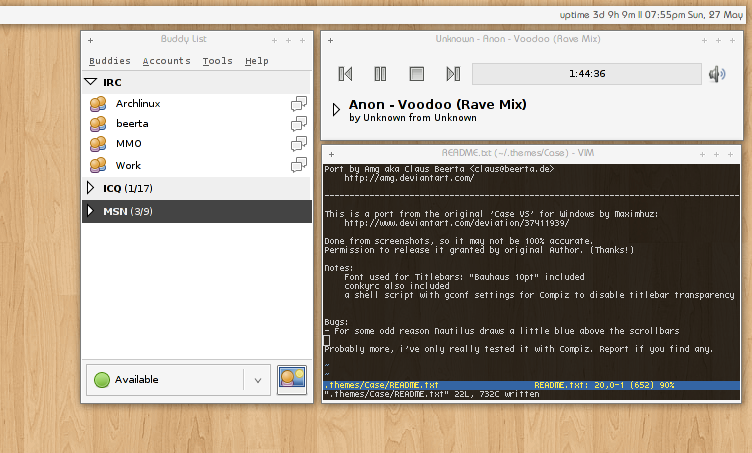
Case

White, bright & fast Case is a very minimal Metacity that doesn’t aim to impress with hover-over effects or glow-y buttons just keep out of your way.

Download @ http://amg.deviantart.com/art/Case-for-GNOME-56250638

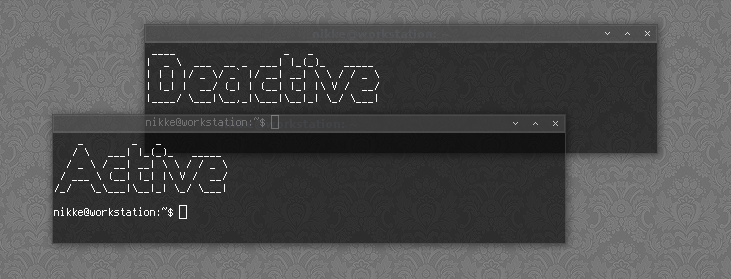
nSimpleDark

If light n’ white is not your bag then this dark Metacity should please.

Download @ http://nikkee.deviantart.com/art/nSimpleDark-88603444

W.I.N.G Metacity

W.I.N.G is a port of the popular Emerald theme of the same name. As with Case above it’s both light, airy and with some unique window control icons adds a bit of identity whilst remaining modally minutest.

Download @ http://evilsidebg.deviantart.com/art/W-I-N-G-Metacity-123864085

Zyonin Dark

We featured some old-skool OS theme in a previous daily 5 and this Metacity takes more than a leaf from their book with it’s classic-OS inspired Metacity controls.

Download @ http://xinh.deviantart.com/art/Zyonin-Dark-Metacity-157108654

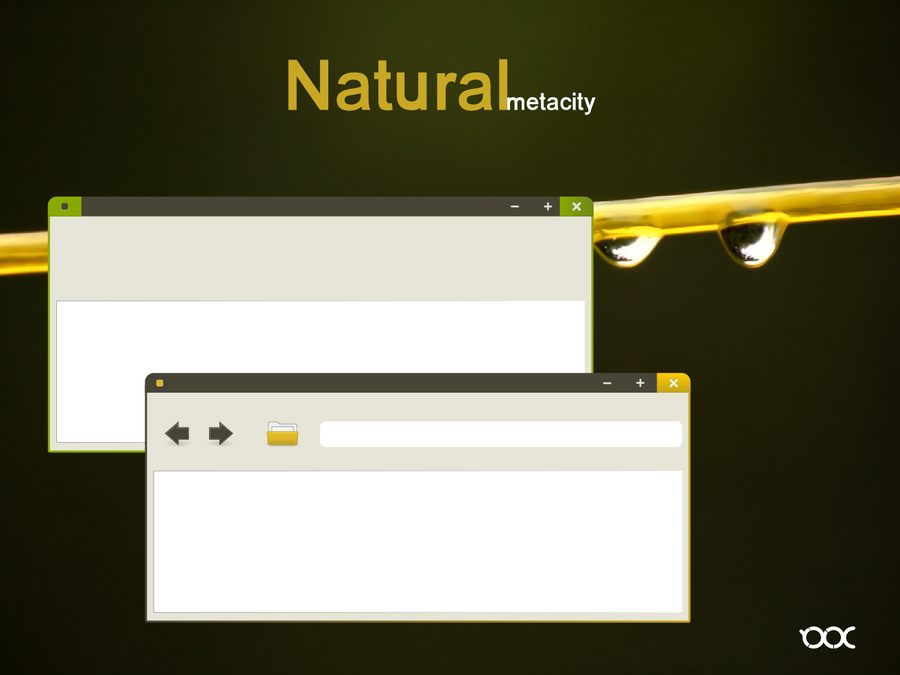
Natural Metacity

Okay… so this one isn’t technically a real Metacity given it’s a mock-up but I had to include it. It’s a great example of how a non-showy minimal Metacity should be and deserve to be made reality.

Mock-Up by 0rax0 @ http://0rax0.deviantart.com/art/Natural-metacity-Mockup-154211165

Continue reading

Daily 5: Five Elementary-Monochrome app icons

View Comments

Elementary users wanting a consistent look to their notification area may find some of the following monochromatic icons perfect replacements for the unsubtle icons the applications mentioned ship with.

Glippy

Anubeon has made an Elementary panel icon awesome clipboard manager ‘Glippy’ that we reviewed a few weeks back.


Download

RedShift

Anubeon has also laid his talents to another OMG! featured app - the ace monitor glare softener RedShift.

Download

RadioTray

Allround ace Swede and Caffeine creator Tommy Brunn has knocked up a slick icon for tray-residing radio application ‘Radiotray’.

Download

DropBox

If you’re already using DropBox 0.8 then you’ll be aware that if finally allows users to replace the Indicator Applet icons. Aldomann has just the icons for Elementary users.

Download

jDownloader

Java-based downloading application jDownloader is popular with many readers and thanks to the work of nenelinux on Gnome-Look it needn’t look all wrong when open and sat on your elementary panel.

Download

Continue reading

Daily 5: 5 keys to press during burg boot

View Comments

Everyone loves button pushing and beautiful boot loader BURG gives you a copious selection to choose from. Better yet they’re useful!

Here’s our dandy high-5 list of five buttons to press during your BURG boot.

Press R for Resolution options

BURG looking all stretched and garbled? Press the R key to select a better resolution. Highlight the resolution you want to switch to in the menu and hit the enter key to apply. Your screen may reset of flicker for a second or two whilst it readjusts so lay off the panic.

Press T to choose a different theme

Bored of the default theme? Hit up the ‘T’ key for a whole world of extra themes. You can see most of them over in our original BURG install post @ this link.

Press F to hide the Ubuntu entries you never use

An easy way to hide all of those extra kernel, memtest & other entries that you never select is to select then and hit ‘F’. This ‘folds’ them away out of sight. To see them press ‘F’ again. Toggle-tastic!

Press E to edit the command of a boot item

If you need to tweak around with the boot command for an item, such as removing quiet-splash for various bork-ish reasons, then the ‘E’ key is your friend, allowing you to edit the selected item in your BURG menu.

Press Q to view the old GRUB menu

Bored of fancy pants? Need something more sober for a second? Hit ‘Q’ to view the old-style GRUB menu list.

You can see a more comprehensive list of button commands over on the BURG wiki @ http://code.google.com/p/burg/wiki/InstallUbuntu

Continue reading

Daily 5: Five ways to help spread Ubuntu

View Comments

Love Ubuntu? Help spread the word.

1. Slap an Ubuntu sticker on your laptop

“What? A sticker? On my laptop?”

It’s all about visibility and if you’re the type to flout about in cafes and coffee shops with your laptop then becoming a techno-billboard is a great way to stir interest in ‘Ubuntu’.

Admittedly, this is a very acute way of raising the profile of Ubuntu in social situations but think how synonymous the Apple logo, Dell logo, etc are on the back of a laptop. By showing off your OS choice on the back, and thus diverging from the norm, people will at least notice it. And who knows - they might even ask what it’s about.

2. Make a kick-ass YouTube Video

It probably seems like everyone and their dog has made a YouTube video showing off wobbly windows and 3D cubes but the over-exposed Ubuntu upload on YouTube still provides an important service. Such videos also hold a special place in my heart: it was how I first found out what Linux really was.

The power of these videos shouldn’t be undersold. For every by-the-book video of well intentioned compiz cube demos there are also well thought out and unique takes on what Ubuntu is. The ‘Ubuntu Ads’ project is a great place to see, and contribute, some inspiring user-created adverts, but there is much more out there too.

Put your creative wiles to the test and create something too!

3. Make some awesome materials for Spread Ubuntu project

imageIf you’re a dandy hand at design then put your paw to creating some great marketing materials for the SpreadUbuntu project. Other users can download and use your work. Whether you want to create CD labels, leaflets for workshops and Linux classes or just giant release party posters you’ll be sure to find something to do.

Check out http://spreadubuntu.neomenlo.org for ideas and tips.

4. The Ubuntu Test

Nothing will make people more inclined to use Ubuntu than knowing that they can use Ubuntu. Load up a USB stick with a persistent install and lend it to some friends and family. Let them play around in Ubuntu to show that the big scary world of ‘not-windows’ isn’t actually that scary at all.

Make use of some of the ‘5 Windows-only app equivalents’  to really prove that there is very little you can do in Windows that you can’t do in Ubuntu.

5. Ubuntify your life

denham-tat_fridgeIf all else fails go blatant: Cover yourself head-to-toe in Ubuntu merchandise - Ubuntu t-shirt, tote bag, lanyard and anything else you can pin some Ubuntu Badges on.

When at home use an Ubuntu mouse mat, drink out of an Ubuntu mug and cuddle up at night with a limited edition Lynx toy.

You could even get an Ubuntu Tattoo like Denham Coote from South Africa…


Picture credits from top | Getch, SpreadUbuntu, Denham Coote

Continue reading

Daily 5: 5 Wallpapers That Aren't Flowers Or Things That Look Like Flowers When Turned Upside-Down

View Comments

Last week Weather-Indicator project member Cullen shared his favourite five images from the Ubuntu Artwork Flickr Pool (where users can submit photos, a dozen or so of which will make it into the default installation of the next Ubuntu release). All but one of his  was floral and the one that wasn’t look mechanically floral when viewed upside down.

To appease the number of people who complained at his choices he’s back with another 5 choice none of which are flowers. As always click on the image to go to the corresponding Flickr page where you can pick up super hi-res versions for diddely squat.

Continue reading

Daily 5: 5 Linux equivalents of windows-only apps

View Comments

Windows converts will find that many of their favourite applications are already available on Linux; Skype, Firefox, Google Chrome, VLC, etc but there are many Windows staples that don’t have Linux ports. The applications listed below make perfect drop-in replacements. 

Windows Movie Maker ~ OpenShot

Whilst Ubuntu ships with a video editor, PiTiVi, it lacks fancy-pants effects & transitions - something that windows converts will have found staple in Microsoft’s Windows Movie Maker.

Switch to OpenShot if you love creating short good looking videos as it comes with well over 60 different effects and transitions, has an easy title creator, a sane export wizard to save your movies when done & best of all it is very, very easy to use.

I don’t call it the ‘iMovie of Linux’ for no reason!

image

Windows Snipping Tool ~ Shutter

Windows Vista introduced an easy-to-use screen capture ‘Snipping tool’ that made taking screengrabs of whatever you want easy as pie. Shutter provides all of the great features that Snipping does and then some!

Instead of pasting your screengrab into Paint to add effects you can edit it directly in Shutter - tons of cool effects can be applied and you can also add arrows, text, freehand drawing, shapes, callouts, icons & even inserting other screengrabs or images!

image

Microsoft Paint  ~ GNOME Paint

Whilst Ubuntu used to ship with popular image editing programme ‘The GIMP’ default installs of late lacks any basic image editing app at all (not counting photo enhancement via F-Spot). For a simple Microsoft Pain “clone” look no further than GNOME Paint. It has every tool, features and design quirk that the actual MS Paint has - but it’s native Linux! Hooray!

Download links are below. Download, save and double-click to install.

download1sdownloads

CCleaner ~ Ubuntu Tweak

CCleaner is one of the “must have” apps for Windows - a capable, through and user-friendly system cleaner. Sadly it doesn’t have a Linux port but what is similar?

In a recent poll on ’the best System Cleaner for Ubuntu’ the titular app came out on top with an impressive 52% of votes. It’s easy to see why as it provides an extensive range of cleaning and package management options, allowing you to easily flush out the following:

  • Downloaded packages no longer needed (installed packages)
  • Sweep up the update cache (E.G. .debs of all the updates recently installed)
  • Old configuration files for applications since removed
  • PPA Purge (Remove all packages installed from specific PPA’s)
  • Old kernels

It works flawlessly too – click, clean, done!
image
Bleachbit is perhaps the most comparable alternative to CCleaner but the amount of options provided is perhaps too extensive for casual users to feel comfortable with.

Windows Live Writer ~ Blogilo

I’ll get the caveat out of the way first: Blogilo is neither as easy to use as Windows Live Writer or as capable. That said it’s easily the best desktop-bound blog editing solution. It supports Blogger, MetaWebLog, MoveableType & Wordpress with the latter receiving the most attention feature wise.

You can edit in HTML or WYSIWYG, you can add pictures, links, preview your posts in your blogs' style, schedule posts, fetch recent blog entries, it boasts a spell checker, tag support and much more.

It’s worth a try if you’ve looking for an actively developed blog editor.
image

Continue reading

OMG! IRC!

OMG! IRC!
 

Popular Threads

Powered by Disqus

Designed on

Blog Archive

Recent Comments

© Ohso 2010 All rights reserved | Site designed by Jeff V and TSM1428. Created by d0od | Back To Top