Showing posts with label eyecandy. Show all posts

Rainlendar puts calendar sexy on your desktop

View Comments
Rainlendar is a self-described 'feature rich' calendar for your desktop that allows for extensive customization, tweaking and personalization.

Events can be set with an alarm for notification and the to-do list makes a handy extra.

Rainlendar is available in a free 'lite' version or as a 'pro' version for €9.95.

Find plenty of weird, wacky and wonderful themes all over the net, but DeviantArt is a particularity good place to look.

Download
The free 'lite' version as well as the pro version are available as .deb installers downloadable at: -


Tip | Steffen Christensen, Via Lin-App

Continue reading

Fortune BURG theme adds Faenza style to boot time (Updated)

View Comments
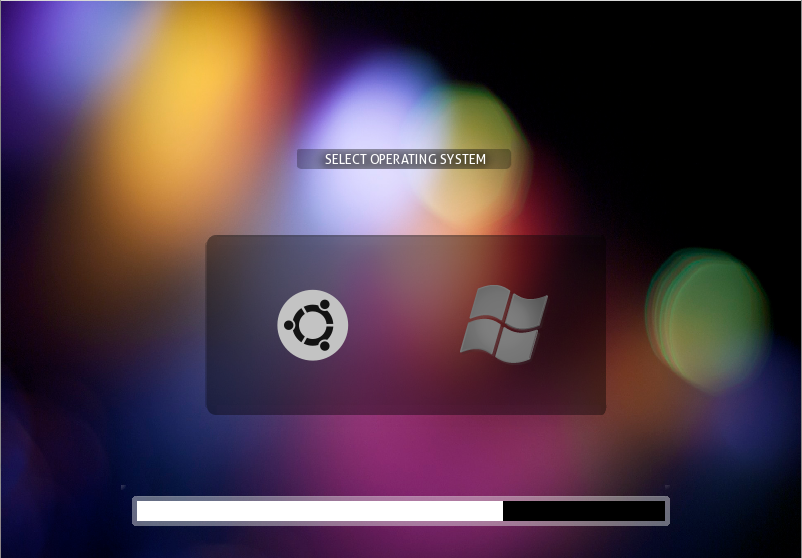
imageFans of the great looking graphical GRUB boot loader replacement ‘BURG’ will no doubt be pleased to see yet another sterling theme is now available to use, install and gush over at every single boot.

Called ‘Fortune’ the theme is striking in design with its woody textured background and use of the superb Faenza icon set.
Not every OS or distro rocks out with a tile-y style ‘faenza’ icon however. In such cases Fortune defaults to the native BURG icons where needed but the creator is looking to remedy this ASAP.

Current distro’s & OSes that have slick icons are: -
  • Ubuntu
  • Fedora
  • Debian
  • OpenSUSE
  • Mandriva
  • Linux MINT
  • Gentoo
  • PCLinuxOS
  • Sabayon
  • Slackware
And, no groaning at the back,
  • Windows
  • Apple
The theme is the work of ‘OrphanShadow’ over on Gnome-look, where it can also be downloaded.

Like it? Love it? Leave your critiques, suggestions or optional adoration in the comment space below (After these shameless plugs, natch)

Continue reading

Stunning user-created Plymouth boot Splash

View Comments

I love it when something stunning (and space-themed, I am biased) comes along to drop my jaw.

Say Hola to the following purdy little Plymouth splash screen created by ~internauta2000. It’s an animated, luscious and all-out Ubuntu-ized affair making it a perfect fit for those seeking some branded-bling for their boot-time experience. 128607-1[3]

The Plymouth boot in action

Bling bling

Download

Grab the splash @ internauta2000.deviantart.com/Ubuntu-10-10-Plymouth-Splash

Installation

Installing and setting new Plymouth boot splashes isn’t recommended for those with a nervous disposition or a sever terminal allergy. If you’re brave enough to continue then you’ll find full instructions inside the .zip file above - in both English and Spanish - ¡Magnífico

Too bad many of us won’t get to see it thanks to Ubuntu booting so darn quickly!

Continue reading

OMG! 5! - Five tips, hacks and tweaks to get a Mac-like experience in Ubuntu

View Comments

For all the 'ITSAMAC!!!OMG!!!1" sentiment flung in the direction of Ubuntu many don't think that it is 'Mac' enough.

We've already covered turning your 'buntu box into a Windows 7 clone but attention turns to Microsoft's Cupertino-based rival and their popular OS X operating system. Here are five ways to make Ubuntu truly looking, behaving and feeling like a Mac. 

I’m going to assume that you’ve already found a theme and icon set to your liking. There are literally hundreds out there.

1. One dock to rule them all

If you're wanting a Mac OS X style desktop you need to have a dock. This is undisputed, holier-than-thou fact-a-rama. 

There are many choices around but for something that feels, looks and, most importantly, behaves like OS X's native launcher 'Docky' is the best bet.

It can look like OS X Tiger, it can look like OS X Snow Leopard - it's up to you and with a fantastically implemented 'Stacks' feature on its way there's never been a better time to become a Docky Die-hard!Selection_001

Click to install Docky

2. Genie effect

Now you have your dock you need to get your window minimizing mimicking spot on.

The iconic 'genie effect' OS X uses can be effectively re-created using Compiz, and whilst it does require moving a few settings around our previous guide it all a cinch.

3. App Menu (global menu style thing)

imageNext on the check-list is an OS X style menu for the top panel.

Ubuntu users will find that Ubuntu 10.10 UNE’s new 'Indicator AppMenu' is the perfect foil for your imitation Mac. Better yet - Lucid users are able to install it too!

4. Nautilus-Elementary

Stock file manager Nautilus is pretty cluttered. To get a paired down, user-friendly and sumptuous looking file manager you need to install the mighty Nautilus Elementary.

Nautilus-Elementary is often labelled a ‘finder clone’. There is one regard where I can concede they are similar: they are both easy to use.

Installing Nautilus-Elementary is pain-free. Lucid users see this post and Maverick users place your eyeballs here.

5. Applications

Now you’ve got the look you need the goods. Here is an unofficial quick-list of applications from OS X and their almost counterparts on Linux.

Quick Look = GloobusPreview

If you use Nautilus-Elementary than GloobusPreview is ‘baked in’ so to speak, allowing you to preview photos, videos, documents and music all with the hit of a space bar.imageGarageband = Jokosher

Jokosher is a simple, simply laid out audio editor perfect for recording your band or your weekly podcast.

iMovie = OpenShot

OpenShot is, as you’re tired of hearing us say, ‘the iMovie of Linux’. It has the features, the stability, the clean interface and the power. Check it out.

iPhoto = Shotwell

Shotwell makes photo management a breeze and whilst not nearly as gnarly as iPhoto (in many ways thankfully) it is more than capable of managing your digital memories.

Safari =  Midori

Why Midori and not Firefox or Chrome? Because you probably use the two latter anyway!

Midori is fast, nimble and comes with many great features such as built-in adblocking and speed-dial.

iTunes = Banshee

“Banshee??!” you hiss in my direction. Yes. Banshee. It now has an MP3 store (using Amazon), can play and manage videos, podcasts and - and - who needs ‘coverflow’ when you can go MeeGo?

Mail = Postler (coming soon)

Ahh, one for the patient now. Postler is the Elementary project’s new mail client and, just like Midori, will be streamlined, efficient and darn usable. imageKeep your eyes here kids and we’ll let you know the minute its available for download.

Dashboard = Screenlets (on a widget layer, no desktop mess kids)

Finally, to round up this, in hindsight extensive post, comes the obligatory ‘widgets’. Screenlets + Compiz allow you to use a ‘Widget layer’ callable via a hot key or hot corner - just like OS X!

Going even further.

You can, of course, go even further. Install Safari or iTunes via Wine (both *almost* work properly), skin Pidgin or Empathy with a slick iChat-esque adium theme, add in OS X system sounds, cursors & wallpaper.

You could even go the whole hog and use Portable Apps for OS X style application management!

---

Before commenting on how pointless/turgid/wtf this guide may be, note that we cover a lot of differing subjects here on OMG! so not every article is going to be hit with 100% of readers.

 This guide is for people who wish/want/have an itch to do this so, if you’ve some comments related to the topic of this post that isn’t a diatribe on why OS X sucks then feel free to leave it below.

Continue reading

monobolin - Moblin meets Ubuntu-mono, makes beautiful icon theme

View Comments

The Moblin icon set (now MeeGo) boasts a wonderfully clean look that not only looks good but doesn’t blind you with gloss or loud colours either.

If you like the refined look of the Moblin icon set then meet ‘Monoblin’ - a new hybrid icon theme, combining aspects of the Moblin icon set with the default Ubuntu Mono icon theme, merging to create a fantastically useable and consistent interface.

Moblin icons are only used for action, status and toolbar icons. All other icons use their Ubuntu-mono theme counterparts. The result is a symbolic style for action icons, going with Gnome 2.28's more sparing use of colours and icons.

Also available for use with the set is a tweaked version of the Victory GTK theme in which Dylan as “added back Murrine's simpler default look for expander widgets” and brought “a little closer to stock Ubuntu.”

He goes on to note one particular change: “I changed the menus in a somewhat unusual way, replacing divider lines with whitespace that actually divides things.”

The end result is something very, very mellow and useable and makes for a refreshing change when compared to the ever-more-glossy theme sets emerging.

All of this was whipped together by the very cool Dylan McCall who dropped a link off in the OMG! inbox earlier today - and very grateful we are too! Thanks!

Continue reading

Faenza may just be your new fave GNOME icon set

View Comments

There are plenty of great icon themes available for GNOME users to brighten their desktops up with but how many of those are truly awesome?

Faenza, by ~tiheum - best known for his Equinox themes - has released an initial version of this icon set which, as pictures tell a thousand words, looks incredible: - Faenza Icon SetSadly not every file-type or application is yet covered so don’t consider the set ‘final’ just yet. It does come with a tonne of gorgeous icons and most common applications and mime-types are covered.

Download

Download the current version over @ http://tiheum.deviantart.com/art/Faenza-Icons-173323228

Extract the folder and run the ‘install.sh’ script inside. This will let you choose which menu logo you would like to use (Ubuntu by default) and install the icons in the relevant place for you.

Thanks to Jia

Continue reading

Clearlooks Revamp GTK theme is light, stylish

View Comments

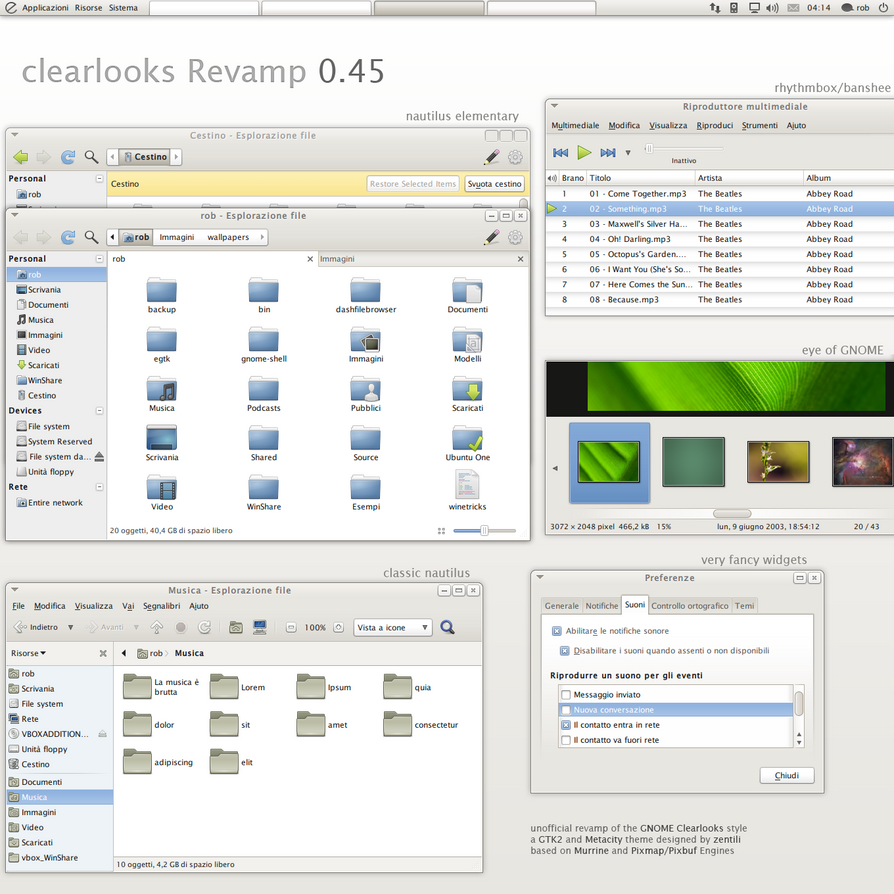
It may be the default theme for stock GNOME but the ‘Clearlooks’ GTK theme no-doubt remains on the fringes of taste for eye candy aficionados. Nevertheless the theme provides a clean and distraction free look for your desktop - but could it better?

Enter ~zentili on Deviant Art who certainly thinks so and has just updated his Clearlooks Revamp theme to version 0.45. More than just a lick of gloss, Zentili affirms that “ [every] aspect of the gui has been considered”.

Features

The theme doesn’t require any extra theme engines to be installed instead relying on the default Murrine and Pixmap/pixbuf engines to have the drawing.

The theme pack contains versions for both standard Nautilus and Nautilus-Elementary as well as a very bland wallpaper.

Download

Download the .zip file from the link below, extract and then install the relevant theme pack in your preferred method (e.g. open appearance properties, go to theme tab, drag and drop)image

Tip via RayRaven

Continue reading

WoW GTK theme lives up to its name

View Comments

Give your desktop a cold, steely makeover with ‘WoW’ gtk theme by ~nale12.

The folder contains: -

  • wow gtk theme
  • wow-dark gtk theme
  • wow-light gtk theme

Elementary versions for use with Nautilus Elementary: -

  • wow-elementary gtk theme
  • wow-dark-elementary gtk theme
  • wow-light-elementary gtk theme

Plus: -

  • two emerald themes
  • two xfwm themes
  • and an alternate metacity without rounded bottom corners

The wallpaper used in the above screenshots can be procured here.

Download

Continue reading

Give your desktop a dramatic overhaul - with one script!

View Comments
Give your desktop a dramatic make over with the ‘Elegant GNOME’ theme pack.


If you’re looking for something that isn’t simply a variation on the default Ubuntu Light themes, shies away from looking like Aero & shuns using garish colours just to ‘seem different’ then Elegant GNOME by arobase could be just what you’re looking for.


The theme comprises of the mono-esque AwOken icon theme, a tweaked version of the sublim Re Crono theme by =lassekongo83 and a great wallpaper by *Muscarr called ‘gDIGE’.

Download

‘Elegant Gnome’ requires the following packages pre-installed in-order to work. (Click each item to see instructions or PPA): -
Then you can proceed to install the theme: -

image[3]

We’ve featured a similar concept before - so if you like the idea but not the look of Elegant GNOME check out Spatial Desktop.

Continue reading

Daily 5: 5 CoverGloobus - the awesome desktop cover art app - themes

View Comments
If you're sat looking a bit bamboozled by the name 'CoverGloobus' then where have you been?! The desktop Cover Art, controller n' Lyrics app is an application with no equal on Linux and no self-respecting eye candy lover should be with out it.
 
Today's daily 5 looks over a handful of extra themes you can add to the art-rocking desktop display app...

Appows

Appows, created by ~neiio and ported over to CoverGloobus by the ace (seriously, she is ace) ~gabriela2400, are somewhat atypical of their peers: there's no overt glossiness, faux glass or mental mish-mashing of competing icons and colour schemes, just refined, sober and clean looking controllers.
Download Appow themes

Elementary Tooltip

Elementary fans seeking a theme to flawlessly match the rest of their desktop will be pleased to see this theme by ~bigrza. The skin is an elementary-esque version of the 'tooltip' theme CoverGloobus ships with, complete with trademark elementary monochromatic icons and soft gradients.  Download Elementary theme

Plastic Beach

We’ve featured the plastic beach set of CG themes before but they’re so awesome they deserve another highlight. With 4 different variations you’re sure to find the one you like.  take a peek

Bitmap

Minimal more your bag? Bitmap is just such a  theme, able to stay tucked away in a corner and out of your way until you need it.Download Bitmap theme

NotifyOSD

A notifyOSD-styled theme is far from a non-plus. The theme sports some hidden control icons that only appear on mouse-over and would look the part on any Ubuntu desktop.Download NotifyOSD theme

How to install CoverGloobus themes

Installing extra CoverGloobus themes is a shoe-in; all you need are some fingers, 30 seconds and a theme ready and extracted and just waiting to be installed…

  1. Hit 'Alt' and 'F2' together
  2. type 'gksu nautilus /usr/share/covergloobus/themes' in the 'run' entry field
  3. Drag n' drop the two Appows' folders into this window
  4. Make sure to install any included fonts prior to launching
  5. Select the themes from the CoverGloobus Configure > Themes menu.
Want to install CoverGloobus? See here for that.

Continue reading

BURG Boot loader installation, themeing & more gets even easier with BURG Manager app

View Comments

If you’re read this blog for a few months you can’t have missed mention of BURG - the easy way to get a graphical, good-looking bootloader.

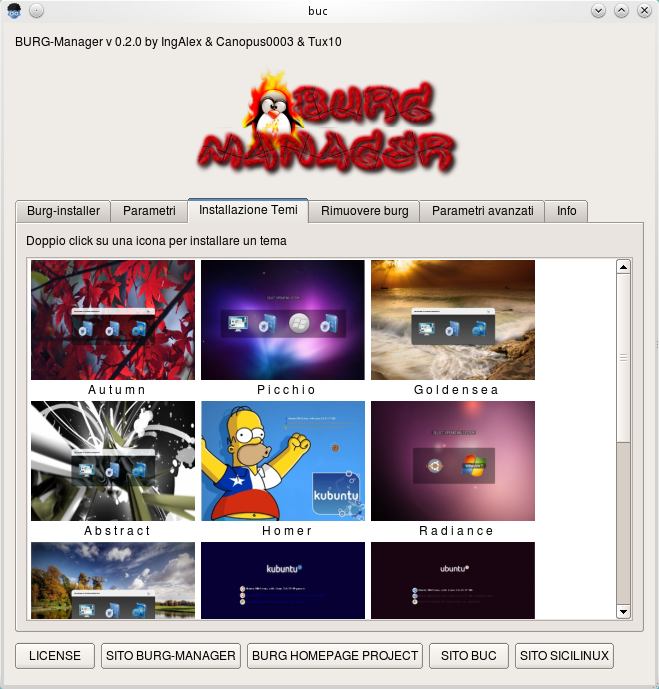
The relatively easy process of installing BURG has now been made even easy thanks to Ingalex and his ‘BURG Manager’ application - which lets you to do all of the following from one simple interface: -

  • Install Burg, Burg-themes and a Burg emulator
  • Set timeout
  • Change theme
  • Set the screen resolution
  • Browse & install new BURG themes
  • Remove Burg
  • Restore Grub2
  • Set the default operating system

Download

Easy one-click install .deb files can be found over on the projects home page @ this link.

Alternatively you can add the official repository for the application, thus ensuring you remain up-to-date with the latest fixes and features. To do this open a terminal and enter the following commands carefully and as root where needed.

  • echo "deb http://www.sourceslist.eu/repo/ubuntu lucid main non-free" | sudo tee -a /etc/apt/sources.list
  • wget http://www.sourceslist.eu/?download=public.key -O- | sudo apt-key add -
  • sudo apt-get update && sudo apt-get install burg-manager

Once installed you will find the BURG Manager in the Application > System menu

Finally…

To finish off here is a pretty swish video of the application in action from the developers themselves: -

BURG Manager in action

Continue reading

(drum roll) The mystery ‘Chromium menu theme’ is revealed…

View Comments

If you remember seeing this a day or two back and thinking “Ooooh”….

…followed by feeling a bit “Boooo” when looking at your stock Ambiance theme, then perk up - I need your ears, eyes and attention! The identify of the mystery theme has been deduced!

It’s called ‘Dichotomy’ and was proposed for inclusion in the Community artwork package during the Lucid cycle. We even featured it here on OMG! back in March this year.

image

Thanks, once again, to cmyrland

Continue reading

Daily 5: Five minimal metacity themes

View Comments

To counterbalance the increasing amount of bright and shiny-buttoned Metacity's of late I present you with some sober minimal Metacity themes to install and enjoy.

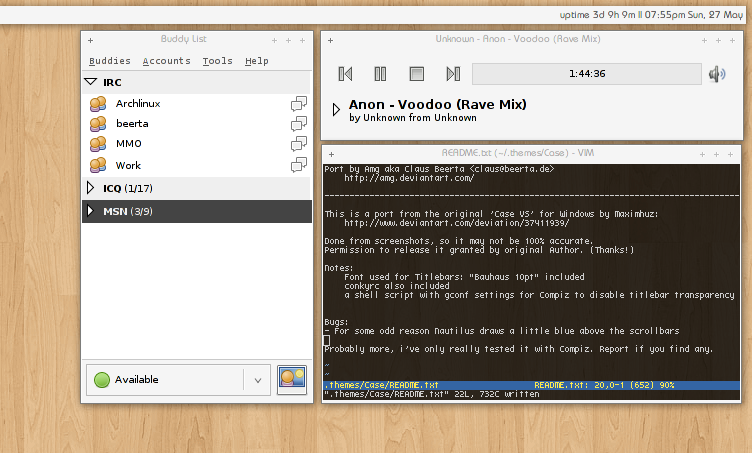
Case

White, bright & fast Case is a very minimal Metacity that doesn’t aim to impress with hover-over effects or glow-y buttons just keep out of your way.

Download @ http://amg.deviantart.com/art/Case-for-GNOME-56250638

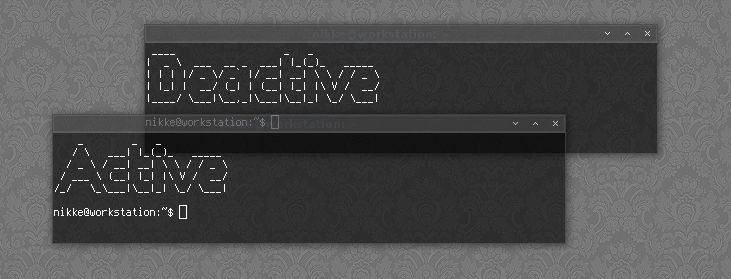
nSimpleDark

If light n’ white is not your bag then this dark Metacity should please.

Download @ http://nikkee.deviantart.com/art/nSimpleDark-88603444

W.I.N.G Metacity

W.I.N.G is a port of the popular Emerald theme of the same name. As with Case above it’s both light, airy and with some unique window control icons adds a bit of identity whilst remaining modally minutest.

Download @ http://evilsidebg.deviantart.com/art/W-I-N-G-Metacity-123864085

Zyonin Dark

We featured some old-skool OS theme in a previous daily 5 and this Metacity takes more than a leaf from their book with it’s classic-OS inspired Metacity controls.

Download @ http://xinh.deviantart.com/art/Zyonin-Dark-Metacity-157108654

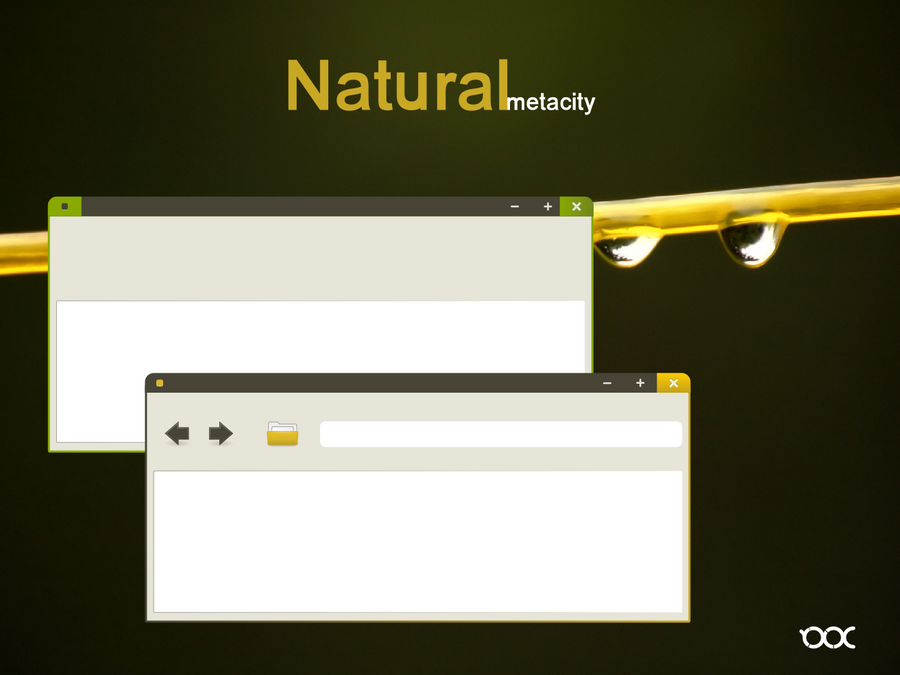
Natural Metacity

Okay… so this one isn’t technically a real Metacity given it’s a mock-up but I had to include it. It’s a great example of how a non-showy minimal Metacity should be and deserve to be made reality.

Mock-Up by 0rax0 @ http://0rax0.deviantart.com/art/Natural-metacity-Mockup-154211165

Continue reading

Impression GTK Themes Get radical update for Meerkat

View Comments

As the 10.10 development cycle rolls along various user-created themes are submitted for potential inclusion in the ‘Community Themes’ package.

The popular Impression themes have been available for a few cycles now but, for Maverick, have now garnered themselves a striking visual overhaul. Whilst the images you’ll see below aren’t final per se they certainly show that impression is, indeed, heading in an impressive direction. Be sure to check out the wiki page for more developmental reasoning on the changes.

Refresh

The first thing you’re going to notice is the inclusion of a consistent colour palette based on that of the ‘new’ Ubuntu branding.

“Impression embraces vibrant warm orange…http://farm5.static.flickr.com/4073/4755682845_4666191e06.jpg
…and Night Impression a cooler aubergine.”http://farm5.static.flickr.com/4096/4756321660_246899fe17.jpg

Install

Yep - you can install these already! To err on the side of caution note that these aren’t by any means final versions but progress snapshots.

Packages

Installation

  1. You will need to install the  latest Murrine GTK engine from PPA (inless you’re already using Maverick)

  2. Once installed log out and then back in
  3. Open System > Preferences > Appearance Dialogue
  4. Click the Install button.

  5. Select the relevant impression tarbell file from its download location
  6. Select ‘Impression’ or ‘Impression Night’ theme

Continue reading

The One Stop Shop for Ubuntu Customization

View Comments
There are a lot of things that make people switch to Ubuntu. Perhaps it's older hardware
that needs a refresh, or a complete loathing of all things Apple and Microsoft, or maybe
a desire to run all open or free source software. However, I would hazard a guess that
for many of us, a desire to tweak, alter, and otherwise change our desktop experience is
at the top of our lists of why we use Ubuntu.

But with all of the resources we have available in free software and the ability to dig into
the open source and change for our own tastes, we all occasionally run into a wall of
lack of inspiration of just what to customize, or what new usability tweak to try out. So
I've gathered up some of the things I've done to my Ubuntu system to help it look great
and work better for, as well as some other ideas and links to other guides we've done
on customizing Ubuntu. Hopefully some of these ideas and guides can help you out if you've run into a dry spell of inspiration, or as a place that you can point new users to get them started in Ubuntu.

Install Some Stuff

Apps

This is an obvious section if you've been using Ubuntu for any amount of time, and has been well covered in our previous posts on what to do after installing Ubuntu, but it still bears mentioning. Head to the Software Center and grab the Restricted Extra's package, the Compiz Config Settings Manager, and maybe some apps like Docky, AWN, or Gnome-Do to help with app launching and such. Go to the websites and grab some .debs for Ubuntu Tweak, Skype, Dropbox, and other handy apps.

My must have applications are as follows:
  • Dropbox
  • Chromium (In Software Center)/Chrome
  • Skype
  • Comix (Software Center)
  • TeamViewer
  • Docky (Software Center
  • Gnome-Do (Software Center)
  • Synergy (Software Center)
  • Getting Things Gnome! (Software Center)
Need some 'iLife' style apps? Take a look at these:

Themes

In addition to apps, utilities, and codecs, you should probably get some additional themes and such. Some of our favorites include Victory, Elementary, Smart, Homosapien, and many more. I personally can't get enough of Victory at the moment.
In addition to that, there are many other themes and icon packs available that you should check out.

Customization Hacks

Possibly our favorite thing to do is to customize everything we can get our hands on. The first thing you should do is to start clicking on the preferences of just about everything you can, but there are some things that either don't make it quite apparent enough that you can customize it, or you need a separate app (like previously mentioned Ubuntu Tweak) to make the change.

For instance, just recently I learned I could make Open Office look like this:

Pretty sweet, huh? You can turn off lots of things like rulers and the status bar in the view menus, and there are a few other options in the (obviously named) Options dialog, under tools. Now, some of you might be freaking out over the lack of page numbers or what have you, but I use mostly keyboard shortcuts so I keep just the one menu for some visual cues on fonts and I have everything else to help me focus. The point is, You don't have to make yours look like mine; you can have yours however you want.

Some other sweet ways to customize your desktop:
There are additional, but ever more dangerous, visual hacks available in Gconf-Editor. This is not recommend for noobs, but if you're interested, take a gander through some of your favorite apps in gconf to find some cool things, like these Docky hacks.

Usability Hacks

Often, when it comes to usability, it can be much harder to simply list things off, as they often have to do with how you use your computer and your particular needs. However, there are a few things you can look at doing.

First of all, you can set up some keyboard shortcuts. System>Preferences>Keyboard shortcuts. These are useful for launching apps, changing workspaces, minimizing or maximizing, and so on.

In addition to that, I highly recommend using Compiz Config Settings to set some additional commands. For instance, I don't actually use the Close/Min/Max buttons on the window borders, and I haven't for nearly a year. Instead, I have the right, left, and bottom sides of my screen set with the right button to do various command. Putting my mouse all the way right and right clicking maximizes/restores the window, all the way to the left and right clicking is minimize, and the bottom and right clicking closes. I also have a whole load of commands in the grid plugin to help tile windows.

Other Random Tidbits

Eventually I'll have more things to go here, as only one or two tricks pop into mind. But a nice quick trick for those of you with more than one computer and with some torrents to seed (and yes, there are perfectly legitimate uses for torrents besides piracy) than you can set up Dropbox and Transmission to give you headless control of your downloads.

  • First of all, install Dropbox on the computer and set up an account if you haven't already.
  • Then, navigate to the preferences menu of Transmission. In the first check box, activate it, then direct it to your dropbox folder to watch for new torrent files.
  • Then click over to the Web tab, and activate the web Client, and put on a password and such. Make a note of the settings, you don't want to set it to only be accessible from an IP address you're not using!
  • Now all you have to do is download a torrent file, drop it in your dropbox folder, and it will automatically get synced over to the other computer, and just automatically get added to transmission! To check on the progress of your torrents or pause or what have you, open a web browser to:
    • http://the.ip.address.of.the.computer:port/transmission/web/
    • where the ip address is obviously the IP of the computer running transmission, and the port is whatever you had it set to in the settings (probably 9091)
  • Hooray!
If you really want to get crazy, you can do as I do and run that computer totally headless (that is, with no monitor) by setting up remote access... but we'll get to that some other time.

Do you have any great hacks or customizations? Did I make spelling mistakes?  Where did I make spelling mistakes? Any part of this post out of date? Do you hate this? Do you love it? Do you have any other answers to questions I didn't ask?

Than tell us in the comments!

Thanks to Seif Sallam who put the idea for this in my head
months ago, only to get ignored so I could graduate.

Continue reading

Android Clock screenlet theme

View Comments

Screenlet clock fans seeking an Android clock theme need look no further.

Regular readers may well know that I had made an Android clock skin myself but since it has disappeared from both my Drop Box and my hard-drive we can all thanks Slater91 for coming to rescue and creating a new one for people to download and use.

Download

Grab the .zip archive from Slater91’s deviantart page @ slater91.deviantart.com/art/Android-Clock-screenlet

Install

Extract the .zip, open up the screenlet control panel then click on the Clock screenlet, select "Install new theme" and proceed to choose the extracted file.

Continue reading

Dark Shine BURG Theme adds transpicuous vibrancy to your boot screen

View Comments
Add some ambiance (no, not that one) to your BURG boot-loader with SWOrginal's Dark Shine Burg theme - a vibrant hyaline-like theme reminiscent of speeding city lights at night.
Download file and easy-install script in the link below.
It should go without saying that you do need to have BURG installed for this theme to work For painless BURG installation instructions see here.

Continue reading

easy to use Lucid-themed conky bar now even easier to use!

View Comments
Remember that easy to use Lucid-themed Conky bar we showed you back in early May? It’s just got even easier to use.124144-1[3]Many of you loved the look of the look of the bar but found the hacking needed to get it to fit your screensize a bit off-putting. Thankfully the developer, Veoduendes, has addressed that issue with the launch of a new configuration wizard which makes using the bar a total breeze.

Features of the Wizard
  • Conky bar adaptable to screensize
  • Ability to choose which 'widgets/stats' are dia.
  • The ability to embed scripts within the program itself.
  • Ability to re-load and edit saved configurations 
  • Available in Spanish and English.

Download

Downloads for 32bit and 64bit Ubuntu are available @ http://code.google.com/p/conkywizard/

Extract the archive and double-click on the ConkyWizard file to run.

Continue reading

Set your Desktop, GDM & Plymouth wallpaper as the same image

View Comments
Want your desktop, GDM background & Plymouth boot image to match? Using gargantuo's Global Wallpaper script you can easily do so.

Download
Download the script @ gnome-look.org

Installation
Extract the archive
Open a terminal and navigate to the extracted folder
Install the script by running 'sudo ./install.sh'
Now run '/usr/local/bin/global_wallpaper.sh' in a terminal session (minus the apostrophes)
You will be promted to select an image file (png files only)
Once chosen click okay and the script will set it as your desktop wallpaper, GDM wallpaper and plymouth background.

Continue reading

icoGen lets you change the colours of the most popular icon sets

View Comments
Do you love the Elementary icon set but wish it was green? Would you use Meliae if it was less pastel? Say hello to the answer: icoGen.


icoGEN can generate whole new iconsets based on SVG files. You can change colors of icon, see preview of the result, and finally apply generated theme.


It comes with 6 theme sets ready for you to re-colour: -
  • Humanity Colours
  • Elementary
  • Ubuntu Mono Dark
  • Ubuntu Mono Light
  • Meliae Light
  • Meliae Dark
Re-colouring is a snap, making use of a handy colour wheel allowing you to pick the exact hue, shade and colour that you want.


Download
icoGen is a java application so to run it you will need Java installed.


Running
To run icoGen simply extract the downloaded .zip file, right click on the 'start.sh' file and grant it executable privileges. Now double click on it and choose 'run' from the prompt window.
thanks to conorsulli

Continue reading

OMG! IRC!

OMG! IRC!
 

Popular Threads

Powered by Disqus

Designed on

Blog Archive

Recent Comments

© Ohso 2010 All rights reserved | Site designed by Jeff V and TSM1428. Created by d0od | Back To Top