Showing posts with label picasa. Show all posts

Installing Picasa 3.8 in Ubuntu via WINE: What works, what doesn't.

View Comments
Google Picasa 3.8 was released yesterday to much fanfare. A bunch of neat new features landed including: -
  • Edit photos in Picnik directly from Picasa 3.8
  • Batch upload
  • Photo properties
and the show stealing
  • 'Face Movie' feature
Ubuntu users don't have access to a neatly packaged version of 3.8. Here's where Wine comes to the rescue as installing the Windows version via WINE enables us to still use many of these nifty new nuances.

Installing Picasa 3.8 in Ubuntu via Wine
You will need a copy of Wine installed beforehand (click to install) and then a copy of the Windows installer for Picasa 3.8 (download here)
  • Double-click on the Picasa 3.8 .exe file
  • Follow the set-up prompts to install
  • Launch Picasa via: -
    • Applications > Wine > Programmes > Picasa 
What doesn't work
First let me break the bad news: the Face Movie feature does not work in Picasa 3.8 via Wine or via our previous hacks. Hopefully a bright spark will get it up and running at some point but for now you're going to have to go without. 

The ability to use Picnik editing seems to require installing Flash, via Wine, however I ran in to all sorts of hiccups and errors trying to get the feature working - hopefully you'll have better luck than I.

What does work
Now some good news: pretty much everything else does work as it should - batch uploading, auto-face recognition, Picasa web sign-in, photo uploading, etc. 

Continue reading

Photobucket “no longer supporting Linux”

View Comments

Photobucket – once the darling of the online image hosting world – informed a frustrated Mint user that their service no longer supports Linux.

Thank you for your comments. Please note YouTube supports different systems
and we do not support Linux. We apologize for the inconvenience but we have
stopped supporting this OS a couple years ago and it was merely a matter of
time and updates before you started having issues.

Sincerely,

Your Photobucket Support Team

Photobucket will likely still continue to work for most Linux users, however if it doesn’t there’s nothing you can do about it.

In the grand scheme of things, it’s no great loss. Photobucket became stagnant with complacency and ever more bloated. Their website is a veritable jungle of giant expanding flash ads and promo .gif’s. Their “against the grain” move of halving free storage from 1GB to a measly 500mb’s should have set alarm bells ringing with the sound of ”we’re not a company that puts users first.”

I can imagine it’ll be frustrating for Linux users who use the service but all the more reason to sign up with more liberal and user-friendly services.

Alternatives

Imageshack.us are great and provide a native Linux uploader. Plenty of applications for Linux support imageshack uploading directly, too!

Google Picasa is another great service. They also provide a desktop application (not just an uploader but a fully-featured photo editor). Picasa uploading will be coming to F-Spot in Lucid, too!

Flickr upload/download/organization support can be found in multiple Linux apps – DFO is worth checking out, and Flickr uploading  is mooted for inclusion in F-Spot Lucid. DSC0152

Continue reading

Improve Picasa's Looks In Ubuntu

View Comments
Google's photo-management come editor program 'Picasa' is a wonderful application for sorting and imporiving the appearance of your photos. Shame it looks lame in Ubuntu!


Thankfully you can do a few things to improve the look of Picasa, the first of which is sorting out that horrible menu bar.


Picasa Menu Bar Fix
Shut all instances of Picasa and then do the following: -

1. Open up your home folder
2. Hit CTRL+H to show hidden folders
3. Go to the .google directory
4. Enter Picasa > 3.0
5. Find the file called user.reg


6. right click and choose to open with gedit
7. Find the heading "[Control Panel\\Colors]" and paste the following UNDERNEATH it.


"ActiveBorder"="234 229 224"
"ActiveTitle"="188 121 79"
"AppWorkspace"="128 128 128"
"Background"="85 56 40"
"ButtonAlternateFace"="181 181 181"
"ButtonDkShadow"="92 92 92"
"ButtonFace"="239 235 231"
"ButtonHilight"="252 251 250"
"ButtonLight"="241 239 226"
"ButtonShadow"="219 211 203"
"ButtonText"="0 0 0"
"GradientActiveTitle"="188 121 79"
"GradientInActiveTitle"="239 235 231"
"GrayText"="181 179 172"
"Hilight"="246 198 125"
"HilightText"="0 0 2"
"HotTrackingColor"="201 127 85"
"InActiveBorder"="212 208 200"
"InActiveTitle"="239 235 231"
"InActiveTitleText"="83 82 80"
"InfoText"="0 0 0"
"InfoWindow"="255 241 190"
"Menu"="232 232 232"
"MenuBar"="188 121 79"
"MenuHilight"="230 223 217"
"MenuText"="0 0 0"
"Scrollbar"="212 208 200"
"TitleText"="255 255 255"
"Window"="255 255 255"
"WindowFrame"="0 0 0"
"WindowText"="0 0 0"

8. Hit CTRL+S and then restart Picasa.


Change fonts
Picasa will better match your desktop if you choose your current desktop font to be used in its menus.

1. Go to Applications > Graphics > Picasa > Picasa Font Settings
2. Choose the "Menu Font" tab
3. Select your current desktop font and click ok.

Fix the squishy sign in text
I couldn't get this fix to work for me but it has worked for some.

1. Open up user.reg again (see above)
2. Search for the header that reads  "[Software\\Wine\\Fonts\\Replacements]"
3. Change "Tahoma"="DejaVu Sans" to "Tahoma"="Bitstream Vera Sans"


Finally... 
None of these "fixes" are perfect, but they do greatly improve Picasa's appearance.

Thanks to azza85

Continue reading

Install Picasa 3.5 In Linux

View Comments

Google this week released Picasa 3.5 for Windows and Mac. Sadly no Linux version was offered, a fact Google blamed on the lowly adoption figures they have for Picasa on Linux.

app_Goog_Picasa

I think that's a shame because Picasa is such an incredible application - its photo editing, its photo management, it's integrated web services... All are just first class.

Picasa 3.5 brings with it: -

  • Facial recognition
  • Geo-tagging
  • Better text tool
  • Awesome Tagging tools
  • Photo importing improvements

There are two option to install Picasa 3.5 in Linux.

First is to simply install the Windows version via Wine. It runs okay but lacks some of the basic Linux integration that Picasa for Linux comes with.

The second is to go one further and replace Picasa 3.0 for Linux with 3.5. Everything works (bar what never has) and it runs off of the same self-contained Wine install that Picasa for Linux does - meaning you don't lose any integration with Gnome.

This article is about installing 3.5 as a Linux version.

You will need Picasa 3.0 already installed, as well as WINE.

You can either grab a .deb of 3.0 from

or add the Google testing repository to 'Software Sources'

  • deb http://dl.google.com/linux/deb/ testing non-free

Update/reload your sources after adding and then

  • sudo apt-get install picasa

To install Wine: -

  • sudo apt-get install wine

Get 3.5 FOR WINDOWS

Now grab a copy of Picasa 3.5 for windows!

  • http://dl.google.com/picasa/picasa35-setup.exe

Install this in wine by double-clicking on it, etc.

Installing 3.5 in Linux

Copy the installed Picasa 3.5 from

/home/YOUR_USER_NAME/.wine/drive_c/Program\ Files/Google/Picasa3

to the

/opt/google/picasa/3.0/wine/drive_c/Program\ Files/Google/Picasa3

directory.

You'll likely need to do this as root so

  • gksu nautilus

via a terminal to gain access.

Providing you already have Picasa 3.0 for Linux installed, all of the above directories should be there.

Once done, that's it! Fire up Picasa 3.5 from your

  • Applications > Graphics > Picasa

menu and all of the new features are there ready and waiting.

Continue reading

Top 5 Apps Not Installed With Ubuntu

7 comments
There are some incredibly useful applications that don't ship with Ubuntu one for reason or another. Below i list my top 5 of the best applications you might be missing out on!

Pitivi - Simple Video Editor (like: iMovie, Windows Movie Maker)

Pitivi is a clean, user-friendly video editor along the lines of Microsoft's Movie Maker. Although Pitivi is still very much in active development (and thus a few things haven't been implemented yet) it does already have a stable release that covers basic video editing needs.

Hopefully at some point Pitivi will be bundled with Gnome as many end users now expect some form of basic video application to ship with their OS, and pitivi does fulfill this requirement.

Find it in Add/Remove by searching for 'Pitivi'


Cheese Webcam Booth - Take Photos Using Your Webcam (Like: iBooth)

I will happily admit this one isn't quite an essential, but it is fun!

Cheese Webcam Booth lets you take photos with your webcam, apply effects to them and upload them direct to Flickr.

Handy for taking an IM avatar or just plain old showing off.

Find it in Add/Remove by searching for 'Cheese'.'


Google Earth and Google Picasa - Useful (yet fun) applications!

These two Google products are both so different, yet both so great.

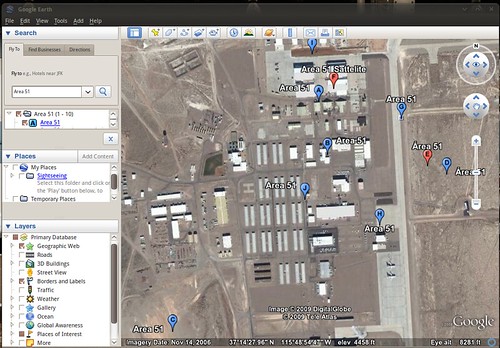
Google Earth "..lets you fly anywhere on Earth to view satellite imagery, maps, terrain, 3D buildings, from galaxies in outer space to the canyons of the ocean..". It's one of those application that you'll end up engrossed in. The animations are just as smooth as on the Windows and Mac versions, and boasts every single feature you'd find in those also.


(Be sure to follow my tip for getting Google Earth to user your desktop theme!)

Google Picasa is an excellent free photo manager and photo editor that is very, very similar to OS X's 'iPhoto'. It allows you organize, tag and sort your photos, as well as edit them (Auto-Contrast, Auto-Balance, red eye, brightness, auto-tone, etc, etc) and apply all sorts of effects (Black and White, sepia, saturate, crop, straighten, etc).


Google Earth: http://earth.google.co.uk/intl/en_uk/download-earth.html
Google Picasa: http://picasa.google.co.uk/linux/

Jokosher - Easy, User-Friendly Podcast maker (Almost like: Garagband)

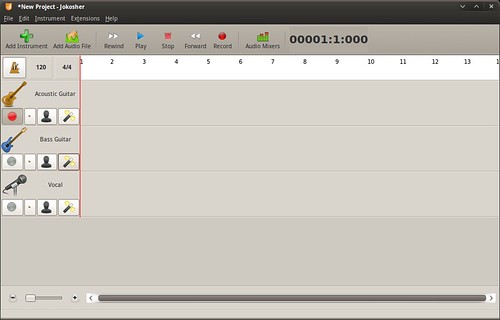
For a capable multi-track recording application, look no further than Jokosher.

Jokosher is not only a complete application for recording, editing, mixing and exporting audio - it's UI has been designed with total usability in mind. As such you'd be forgiving for thinking it was designed by Apple!

"The developers behind Jokosher have re-thought audio production at every level, and created something devilishly simple to use."


Install it now via Add/Remove

Almost Made The List: -
Record My Desktop -
Awesome screen-capture tool
Skype -
Make free VoIP Calls
Screenlets -
Wide range of useful desktop widgets
Songbird -
Very 'iTunes' like media player
SecondLife -
3-D Virtual World

Continue reading

OMG! IRC!

OMG! IRC!
 

Popular Threads

Powered by Disqus

Designed on

Blog Archive

Recent Comments

© Ohso 2010 All rights reserved | Site designed by Jeff V and TSM1428. Created by d0od | Back To Top